You pick a DreamWorks favorite for movie night, type the title into your TV, and still end up bouncing between apps. That isn’t because you’re searching wrong—it’s because DreamWorks movies don’t live in one consistent “home” the way some studio catalogs do. Different parent companies and distribution deals mean one film can be included with a subscription on one service, while the next film in the same franchise is only available to rent somewhere else.
On top of that, titles rotate. A movie that was “free with your subscription” last month can quietly move to another platform, or flip to rental-only with little warning. Even when you find it, you may hit practical snags: kid profiles that can’t access rentals, multiple logins, or add-on channels that cost extra. The goal is to treat streaming like a changing schedule, not a permanent library.
DreamWorks, DreamWorks Animation, and who controls the rights
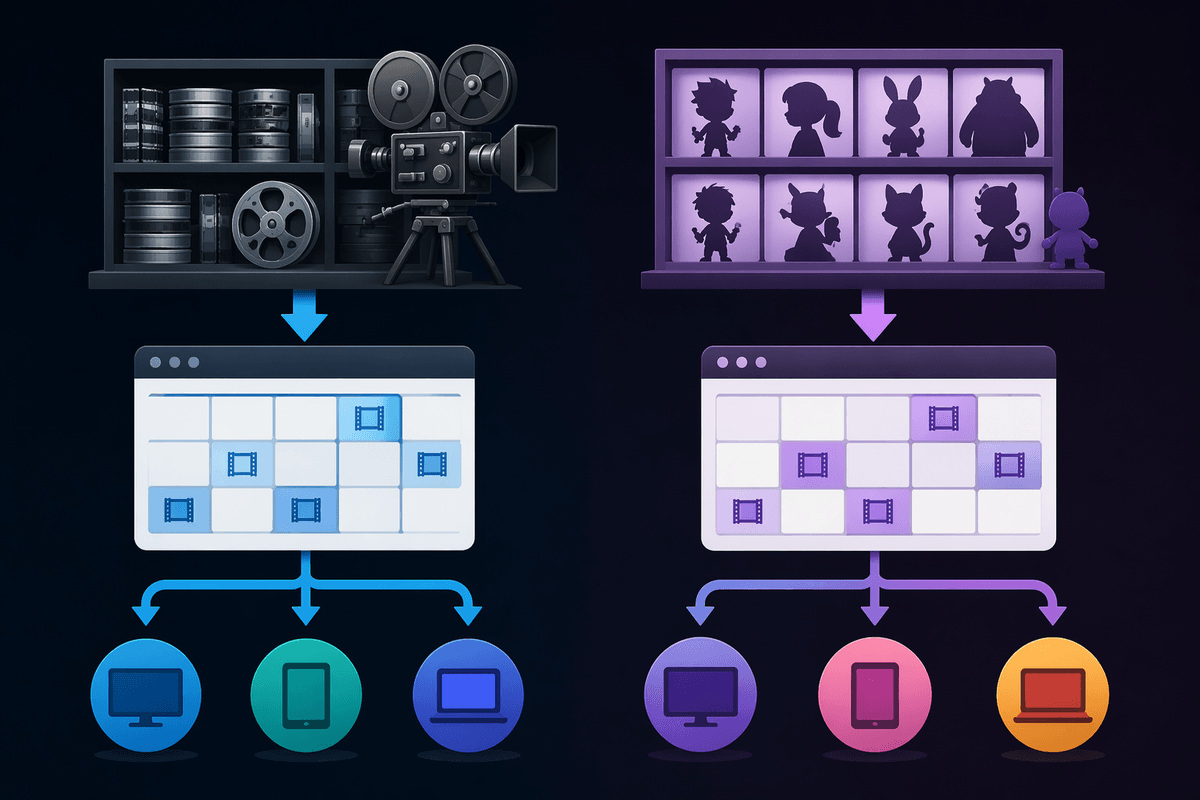
A common source of confusion is the name itself. “DreamWorks” can refer to live-action films released under the DreamWorks Pictures banner, while “DreamWorks Animation” is the studio behind most of the family titles people mean (like Shrek, Madagascar, and Kung Fu Panda). Those two histories don’t always travel together in streaming, because the rights are tied to who financed, distributed, or later bought the library.
Today, DreamWorks Animation is owned by NBCUniversal, so many animated titles tend to show up on Peacock at some point. But “tend to” is doing work: older movies may be controlled by earlier distribution deals, and newer releases often follow timed “windows” that can start on a different service before landing on Peacock later.
That’s why two movies that feel like the same brand can behave like different studios. The practical cost is time: you have to check the specific title, not just the logo, before you promise movie night.
A quick map of the major services that carry DreamWorks
If you’re in the U.S., the fastest starting point is to treat DreamWorks Animation as “often Peacock, sometimes elsewhere first.” Many well-known animated titles will cycle onto Peacock because DreamWorks Animation sits under NBCUniversal, but the timing varies by movie and by year.
The other big stop is Netflix, which frequently hosts newer DreamWorks Animation releases for a first subscription run before they move again later. Amazon Prime Video is the most common “wild card”: some titles are included with Prime at any given moment, but many show up as rental/buy even when you already pay for Prime. Hulu, Max, and Paramount+ can have specific DreamWorks films too, usually as shorter rotations rather than a reliable home.
When a subscription doesn’t have it, the practical fallback is rental on the stores built into most TVs: Prime Video, Apple TV, Google TV/YouTube, and Fandango at Home. Budget for $4–$6 per rental, and double-check you’re not clicking into an add-on channel that costs extra.
Where to stream the 90s–2000s icons people rewatch
For the late-90s and 2000s staples people rewatch—Shrek, Madagascar, Kung Fu Panda, How to Train Your Dragon, The Prince of Egypt, and Spirit—the quickest approach is to start with Peacock, then check Netflix as the second stop. Peacock is the most common landing spot over time for DreamWorks Animation, but older hits also bounce out for months at a time, and it’s normal to find one movie included while the sequel is rental-only.
If you’re aiming for a specific “comfort watch” and don’t want surprises, assume at least a two-service check: search the title inside Peacock, then inside Netflix, then stop and decide. Prime Video can look promising but often routes you to rent or buy even if you subscribe, and the UI can blend “included,” “add-on channel,” and “store rental” into the same results.
When it isn’t included anywhere, don’t keep app-hopping. Pick one store you already use (Prime Video, Apple TV, Google TV/YouTube, or Fandango at Home), rent it, and note the price and playback rules—kid profiles and Family Library settings can block rentals on some setups.
2010s–today: franchises, sequels, and “new” DreamWorks windows
You’ll feel the split most with the 2010s-to-now movies: Trolls, The Boss Baby, The Croods, Home, Abominable, the later How to Train Your Dragon entries, and the steady stream of sequels and specials. These titles often follow a “new release” pattern where the first subscription stop may be different from the long-term landing spot. That’s how you end up with one franchise movie included on a service, while the newest one is rental-only, or temporarily tied to a different subscription.
For planning, treat recent DreamWorks like you’d treat a TV season: it has phases. If a movie came out fairly recently, check Netflix and Peacock first, then look for a “included with subscription” label on Prime Video before you assume it’s free. Be especially careful with Prime’s results, where add-on channels can look like the main subscription.
When you’re picking between two options for family night, older usually means “more likely to be included somewhere,” newer usually means “more likely to cost $4–$6 to rent.” If you want a sure thing, choose the movie that’s already included and put the newer one on a watchlist for later.
Your region matters: how to confirm what’s actually included
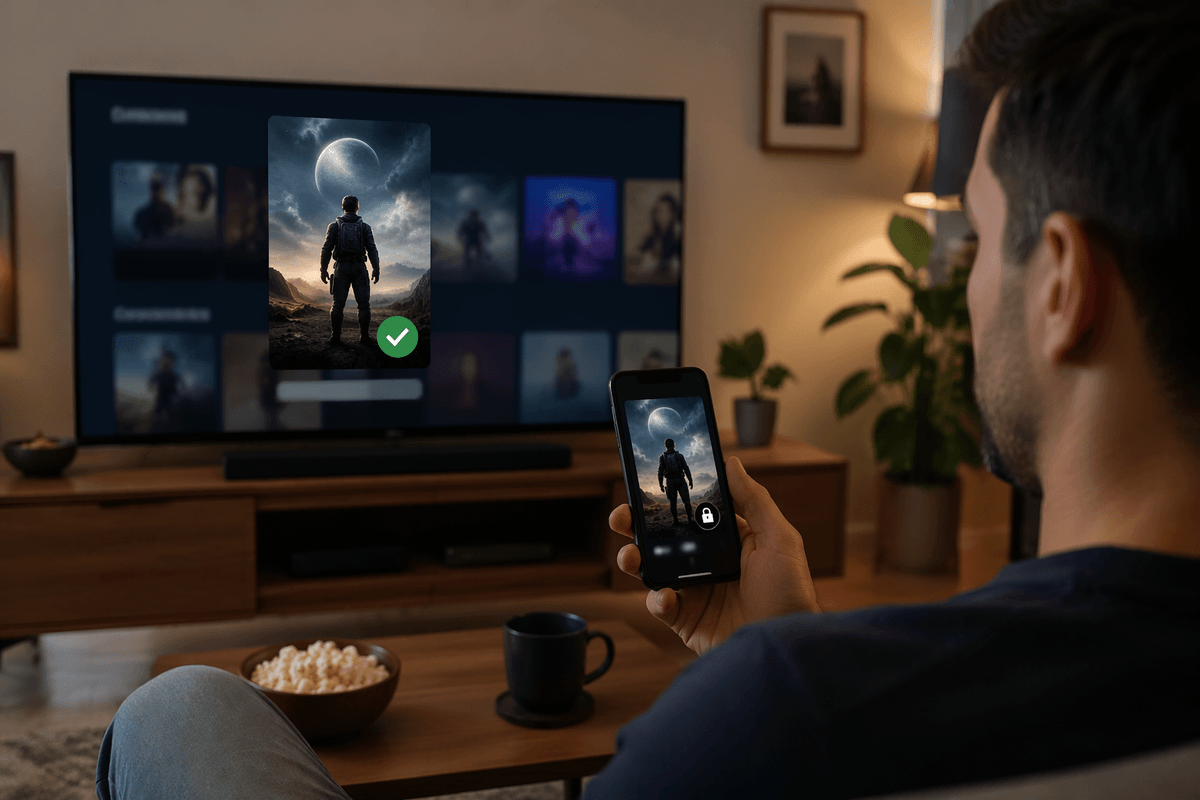
You can do everything “right” and still get a different answer than a friend, because streaming rights are sold by country (and sometimes by language). Even within the U.S., a title can show as included on one device and rental-only on another if you’re signed into different accounts, profiles, or app stores. The fastest reality check is to search the movie inside the service you pay for, not on the TV’s universal search.
When you find the title, open the details page and look for the exact label: “Included with” (subscription), “Rent/Buy,” or an add-on channel name. If it says “Watch with,” “Free trial,” or shows a channel logo, assume it’s extra until you confirm your subscription covers it. Also confirm the version—some listings split “HD,” “4K,” “Unrated,” or “Sing-Along” as separate entries with different availability.
If you’re traveling, expect mismatches. For a quick second opinion, check a streaming search site (JustWatch or Reelgood), then still verify in-app before you promise movie night.
If it’s not streaming: rentals, bundles, and building a watchlist
When the movie isn’t included anywhere, treat it like a choice between “pay once” and “wait.” A $4–$6 rental is usually the fastest fix, but it comes with friction: 48-hour windows once you start, occasional device limits, and kid profiles that can’t complete purchases without a PIN. If you rent often, pick one store and stick to it (Prime Video, Apple TV, Google TV/YouTube, or Fandango at Home) so your purchase history and family sharing settings stay in one place.
Bundles can cut the pain when you’re chasing a whole franchise. A 3–4 movie set often costs less than renting each one across different weekends, and buying removes the “it moved again” problem—though you’re still tied to that store’s app and account. When you don’t want to spend, add the title to a watchlist in Peacock/Netflix and in a tracker like JustWatch or Reelgood so you’ll catch it when it flips back to included.
A simple way to keep DreamWorks finds from expiring
The simplest habit is to “pin” a DreamWorks title in two places the moment you find it included: your streaming service’s watchlist (Peacock/Netflix) and one tracker app (JustWatch or Reelgood). Turn on availability alerts in the tracker, and you’ll get a heads-up when it leaves, lands somewhere new, or flips to rental-only—before you’re staring at the TV on a Friday night.
Add one calendar rule that costs nothing: if a movie-night pick is only available “included” today, watch it within the next 7–10 days or plan to rent it. Rotations can change without warning, and relying on memory is the easiest way to waste another 20 minutes.