You think you’re done with USB sticks
You clean out a drawer, see a handful of USB sticks, and think, “I don’t need these anymore.” Between email, shared drives, AirDrop, and chat apps, most file moves feel automatic. Until they don’t. The moment you’re in a classroom, a meeting room, or a client lobby and the upload wheel stalls, you remember how much your “simple” workflow depends on the network and your accounts behaving.
Keeping USBs does add a small chore—labeling them, not losing them, and avoiding sketchy unknown drives. But one small, reliable stick can still be the least fragile way to move a file when everything else is acting normal right up until it isn’t.
When Wi‑Fi disappears, what still moves files?
You open your laptop, reach for the shared folder, and see the Wi‑Fi menu full of grayed-out networks. Or the guest network needs a browser login you can’t complete because your phone has no signal. In those moments, “I’ll just upload it” turns into waiting, hotspot juggling, or asking someone else to share their connection.
A USB stick still works when the room’s network doesn’t. Plug it in, drag the file over, and you’re done—no passwords, no captive portal, no sync status to interpret. This is especially useful for printing a PDF in a library, handing over slides before a meeting, or moving a file from a work laptop that blocks personal cloud apps.
The downside is physical: you can lose it, snap it, or leave it in a borrowed adapter. That’s why a single, sturdy stick you keep in the same pocket of your bag beats a random pile—and sets you up for the “hand it over right now” moment.
The “I need it now” handoff moment
You’re ten minutes from presenting and someone says, “Can you send me the deck?” They mean right now, to their laptop, not “after it finishes syncing.” You try the usual options: AirDrop that won’t discover the device, a chat app that compresses or refuses the file, a shared link that needs permissions, or an email attachment limit you forgot about. The awkward part isn’t the technology—it’s the room waiting while you troubleshoot.
A USB handoff is blunt and fast. If the file is already on the stick, you’re transferring at the speed of the port, not the building’s Wi‑Fi. If you keep a second folder with “latest export” versions (PDF of slides, ZIP of assets), you can hand over something that opens anywhere without hunting through project files.
The catch: some org laptops block unknown drives, so it helps to know whose machine will receive it before you bet the moment on a plug-in.
Accounts get blocked—do you have a fallback?
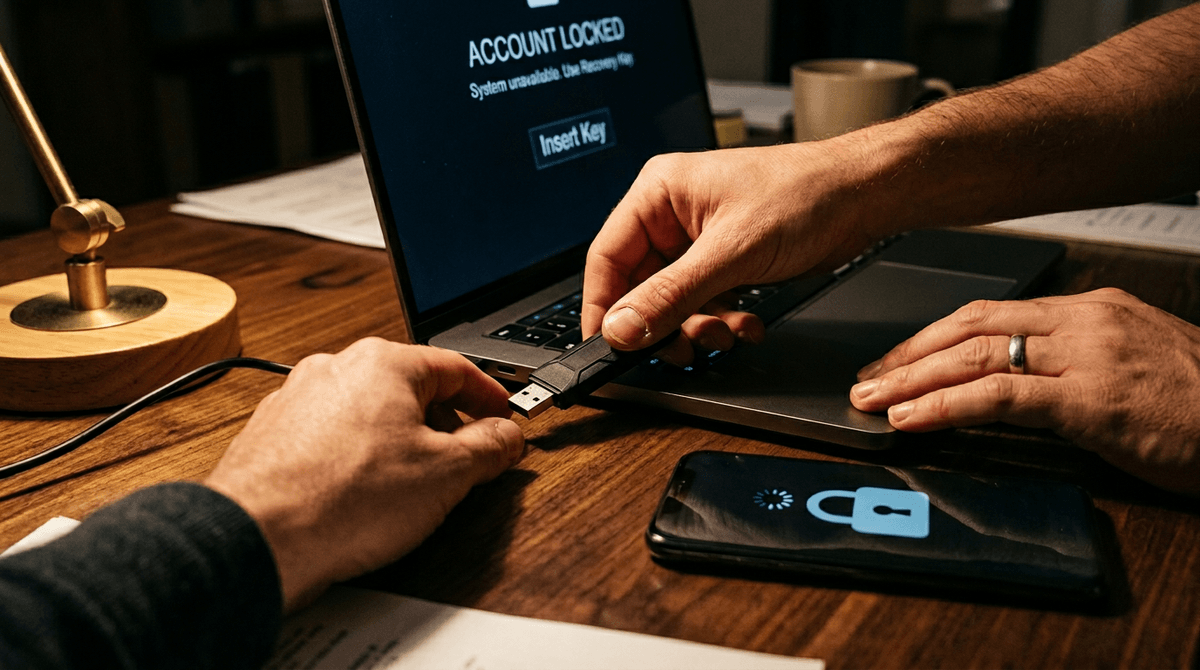
You sign into a shared drive and get bounced back to the login screen. Or your storage app flags “unusual activity,” your SSO needs a code your phone can’t receive, or a work policy suddenly forces a password reset. None of that feels dramatic until you’re trying to pull one file you already created and can’t reach.
This is where a small offline copy pays for itself. If the only version lives behind an account, you’re stuck waiting for IT, a recovery email, or a coworker with access. If you keep a USB with a “current” folder—resume, portfolio PDF, latest slides, a couple of key templates—you can keep working and deliver something even when your accounts are locked out for an hour or a day.
The downside is you now have two places a file can live, and it’s easy to forget which one is newest. A simple habit helps: overwrite the USB version right after you finish a project milestone, not “sometime later,” and you’ll be ready for the next failure mode: a cloud link that crawls on big files.
Huge files make the cloud feel slow again
You try to share a video, a design export, or a zipped project folder, and suddenly the “easy” path turns into a progress bar that won’t finish. The file is too big for email, the chat app rejects it, and the cloud link takes long enough that you start doing math: how long before the other person needs it?
Big uploads expose two normal limits. One is upstream speed—home Wi‑Fi and hotspots often upload far slower than they download, so a 4–10GB folder can take ages. The other is overhead: syncing, scanning, and permission checks can stall even when your connection looks fine. A USB copy skips all of that. If it’s already on the stick, you’re moving data at USB speeds, not waiting on the slowest part of the network.
The cost is planning: you have to remember to load the stick before you leave. That’s where compatibility can still surprise you.
Compatibility surprises: one stick beats five adapters
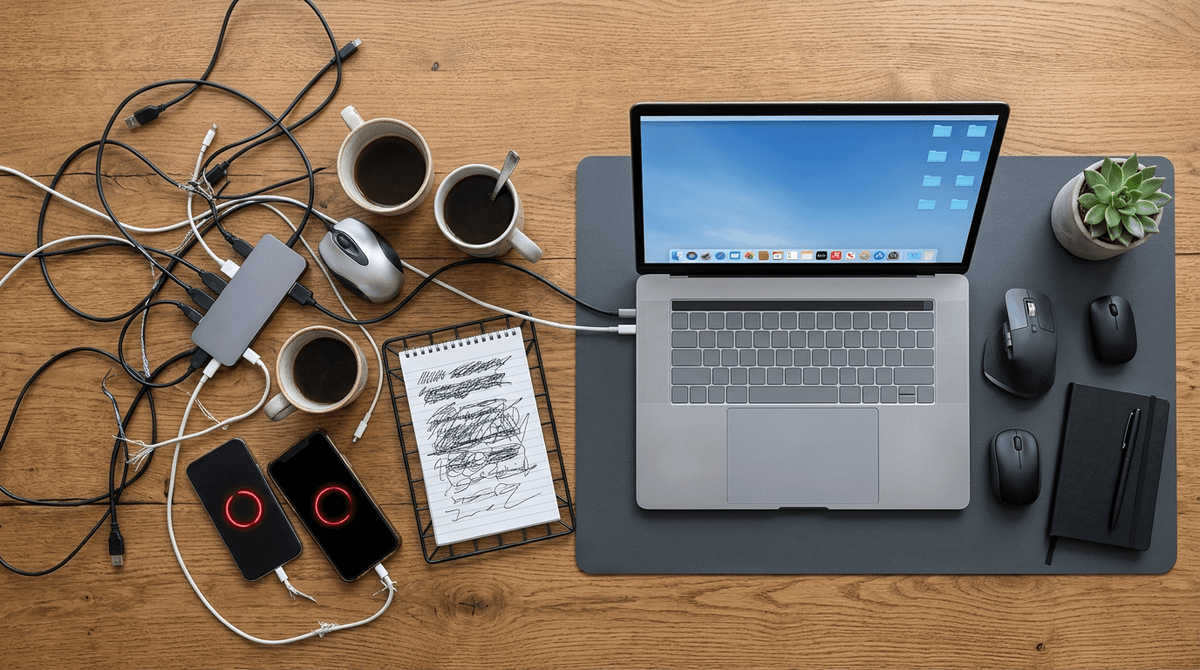
You show up with the file ready, then hit the “what ports do you have?” question. Your laptop is USB‑C only, the room PC still wants USB‑A, the projector laptop has one loose port, and someone’s phone can’t read the drive without a specific format. You can try to bridge it with adapters and hubs, but that’s how a simple handoff turns into borrowed dongles, flaky connections, and a drive that won’t mount because it’s exFAT on one machine and “needs formatting” on another.
A single, intentional stick can beat that mess if you buy for the widest overlap: a dual‑connector drive (USB‑A + USB‑C) or a USB‑C drive plus one short, sturdy USB‑C-to‑A adapter you keep attached. Format it to exFAT for cross‑platform use, and test it once on your work laptop before you need it.
The annoying part is cost: good dual drives aren’t the cheapest, and cheap adapters fail at the worst time. Keep one setup that you trust, then the last step is keeping fewer USBs on purpose.
Keep fewer USBs, but keep them on purpose
You don’t need a fistful of random freebies to be “covered.” You need one or two drives you trust, in fixed roles: a daily carry stick for handoffs, and (if you want) a second one that stays at home as a backup. Keep them labeled, keep them empty except for a simple “Current” folder, and refresh that folder on a schedule you’ll actually follow—like every Friday or right before travel.
There’s a real cost: a USB can be lost, and anything unencrypted is easy to read. If the files are sensitive, use a password-protected encrypted drive, and don’t plug unknown drives into your main laptop.