You built it, but something feels off
You hit the power button and it works, but the PC doesn’t feel right. Fans surge for no clear reason. Games run, yet the case feels hotter than you expected. Random stutters show up, or the system reboots once and then behaves for days. Nothing is “broken,” so it’s hard to know where to touch it without making things worse.
This usually comes from a few small choices that don’t trigger an obvious error: airflow that looks clean but traps heat, a cooler that’s mounted fine but still underperforms, RAM that’s installed but not actually running at its rated settings, or a slot/port choice that silently limits bandwidth. The fastest fix is to start with the symptoms and let them point to the culprit.
Start with symptoms to find the likely culprit fast
You usually notice the problem in one of four ways: the fans ramp up in simple tasks, the GPU runs hotter than expected in games, the CPU hits high temps fast under load, or everything “works” but feels oddly slow or stuttery. Treat that first symptom like a shortcut to where to look, instead of re-checking the whole build.
If the case feels hot and the GPU is the loudest part, suspect airflow: front intake blocked, too few intakes, or a “quiet” front panel that can’t feed the card. If the CPU spikes to 90–100°C quickly in a stress test but the case stays reasonable, suspect cooler contact, paste spread, or pump/fan control. If frame times look jagged while average FPS is fine, check RAM settings (XMP/EXPO) and the slot your GPU is in.
One limitation: chasing two symptoms at once wastes time. Change one thing, test, and keep notes for five minutes.
A “quiet” case that starves your GPU for air
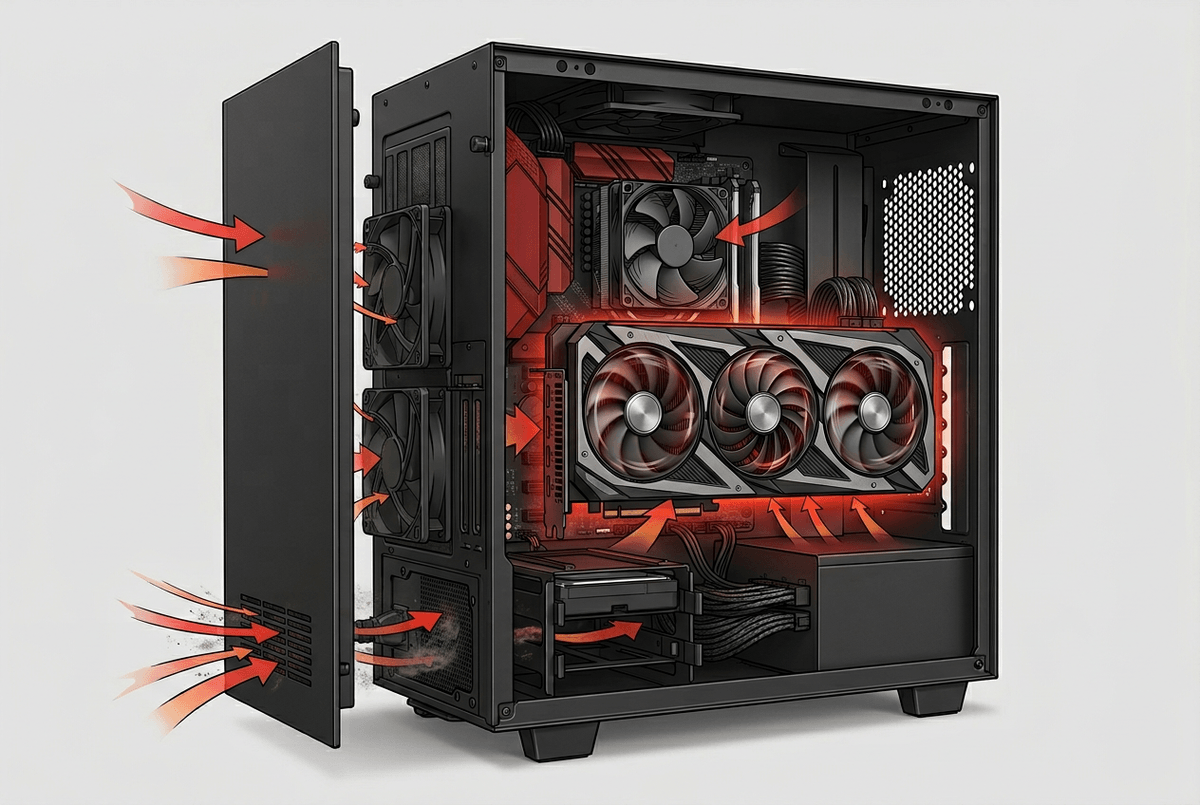
You sit down to game and the GPU fans jump to a roar, even though you bought a “quiet” case. The common pattern is a solid front panel with tiny side vents, plus a big modern GPU that dumps heat into the case faster than those vents can feed it. The card isn’t failing. It’s recirculating warm air and pushing its fans harder to keep up.
Quick check: pop off the front panel (or open the front door, if it has one) and run the same game for five minutes. If GPU temps drop by ~5–10°C and the fans calm down, the case is the limiter. Fixes are simple: add two front intake fans if the case supports them, clean or swap a restrictive dust filter, and make sure the GPU has a clear path from intake to its fans. Also verify your intake fans aren’t accidentally flipped as exhaust.
The downside is noise can come back if you brute-force airflow with high RPM. A better target is more intake area and moderate fan curves, then test again before buying anything else.
Why are your temps bad with a good cooler?
You run a CPU stress test, see the temperature slam into the 90s, and immediately blame the cooler. Often the cooler is fine. It’s the contact and control details that quietly break performance: a protective plastic film left on the cold plate, uneven mounting pressure, or a pump/fan curve that never ramps when the CPU heats up.
Check the easy wins in order. In BIOS (or your motherboard app), confirm the cooler fan is on CPU_FAN and an AIO pump (if you have one) is on a header set to run 100% or “pump” mode. Then watch temps while you run Cinebench or a similar load: if temps climb fast and the fan RPM barely moves, it’s a control issue. If RPM reacts but temps still spike, reseat the cooler: clean with isopropyl alcohol, reapply a pea-sized dot of paste, and tighten in an X pattern.
One real downside: reseating costs time and paste, and it’s easy to overtighten. If you fix contact and control and it’s still hot, the next thing to question is power limits and voltage settings.
Your RAM is installed, but it’s not really running
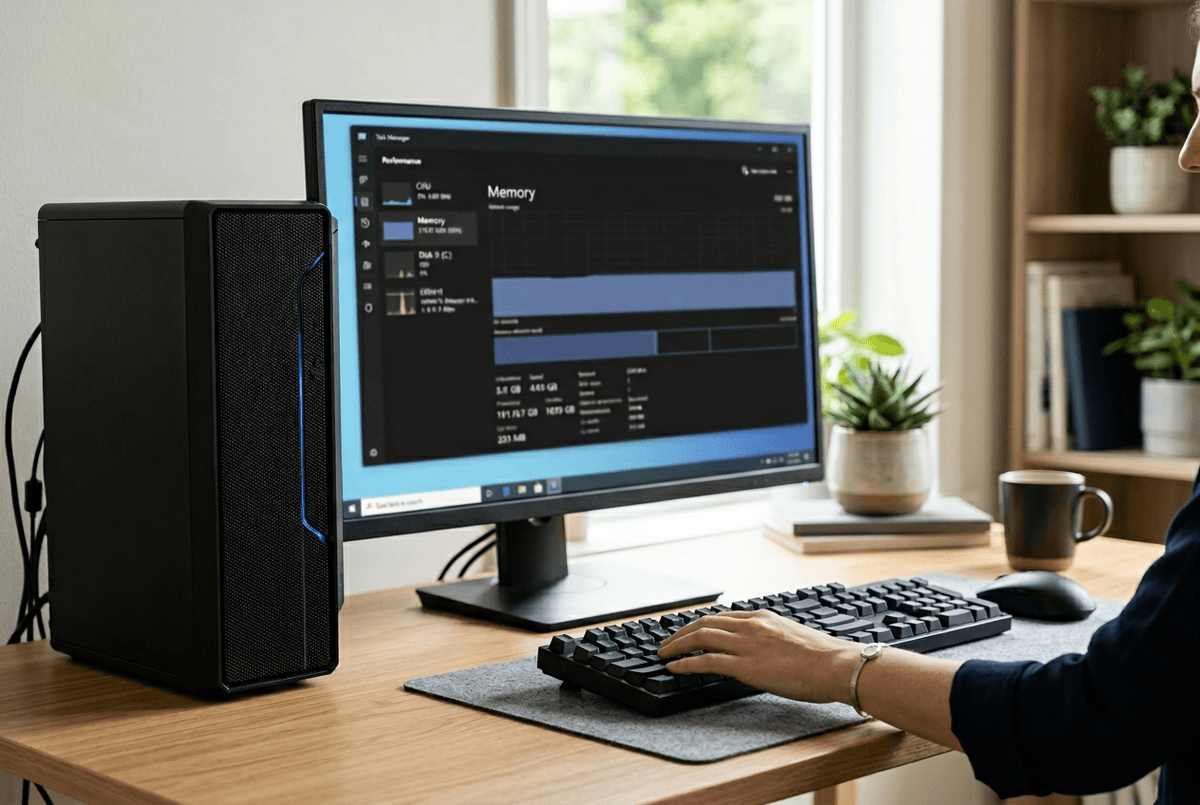
You boot into Windows, everything “sees” your RAM, and you assume you’re done. Then games feel a little stuttery, compile times drag, or 1% lows look worse than reviews for the same CPU/GPU. A common cause is simple: your memory is running at the motherboard’s safe default (often 4800–5600 MT/s on DDR5, or 2133–2666 MT/s on DDR4), not the speed on the box.
Check Task Manager → Performance → Memory and look at “Speed,” or use CPU-Z. If it’s lower than your kit’s rating, enable XMP (Intel) or EXPO (AMD) in BIOS, save, and retest. If it won’t boot or you get random crashes, back off one step: try the next-lower profile, set the rated speed but relax timings, or bump DRAM voltage only to the kit’s spec. One real hassle: “works in games” can still hide memory errors, so don’t assume stability just because it launches.
Once the speed is right, the next silent loss is where that hardware is plugged in.
The wrong slot choice can quietly steal performance
You install the GPU, it clicks, the monitor lights up, and you never think about that slot again. But a lot of boards have multiple full-length PCIe slots, and only one is wired for the CPU’s full bandwidth. If you put the card in the lower slot because it “looks cleaner” or clears a front radiator, you can end up running at fewer lanes or through the chipset, which can shave performance and make frame times rougher in some games.
Quick check: look up your motherboard manual and confirm the GPU is in the top x16 slot (the one tied to the CPU). Then, in GPU-Z, check “Bus Interface” and click the little “?” to run the render test; you want to see it actually ramp to x16 (or at least the expected gen/lane count for your platform). Do the same for NVMe drives: the “wrong” M.2 slot can disable SATA ports or drop lanes depending on the board.
The annoyance is physical: moving a GPU can mean re-routing cables and redoing support brackets, but it’s cheaper than chasing “mystery” stutter. After you change slots, lock it in with a quick sanity pass.
Lock in the gains with a five-minute sanity pass
After you’ve made the change, run a fast, repeatable check before you declare victory. Boot once into BIOS and confirm XMP/EXPO is still enabled and your CPU_FAN (and pump, if you have one) shows sensible RPM. In Windows, run the same five-minute game scene or benchmark you used earlier, then glance at GPU/CPU temps and fan RPM in HWiNFO or MSI Afterburner.
Finish with one stability tripwire: a quick Cinebench run plus a short memory check (Windows Memory Diagnostic or a light MemTest pass). It can feel slow to do “extra” tests, but it’s faster than chasing a crash two nights later with no clue what caused it.