You’re not taking “too many photos”—your iPhone is quietly saving extra data
You take a few photos at dinner, maybe a short video at the game, and somehow your storage drops faster than it feels like it should. That’s usually not because you suddenly started “taking too many photos.” It’s because the iPhone can save more than a single still image every time you tap the shutter.
Some Camera features quietly attach extra seconds of motion, extra versions, or higher-quality data to each shot. It’s convenient until you’re on a 64–128GB phone and Photos starts crowding out apps, updates, and even messages.
The good news: you can stop the size creep without deleting memories—once you confirm what’s actually doing it.
Quick check: is Photos actually the thing filling your storage?
You can spend an hour trimming your photo library and still get the “Storage Full” warning if Photos isn’t the main problem. Before you change anything in Camera, take 30 seconds to confirm what’s actually eating space.
Go to Settings > General > iPhone Storage and wait for the bar to load. Look at the list below it. If Photos is near the top and shows a big number (often tens of GB), you’re in the right place. Tap Photos and note what iOS suggests—sometimes it pushes “Optimize iPhone Storage,” which helps, but it can also mean full-resolution files are still sitting on your phone.
If Messages, Videos, or a couple of huge apps are bigger than Photos, fix those first—otherwise you’ll turn off a camera setting and still feel stuck.
The usual suspect: Live Photos (why one tap can double the size)
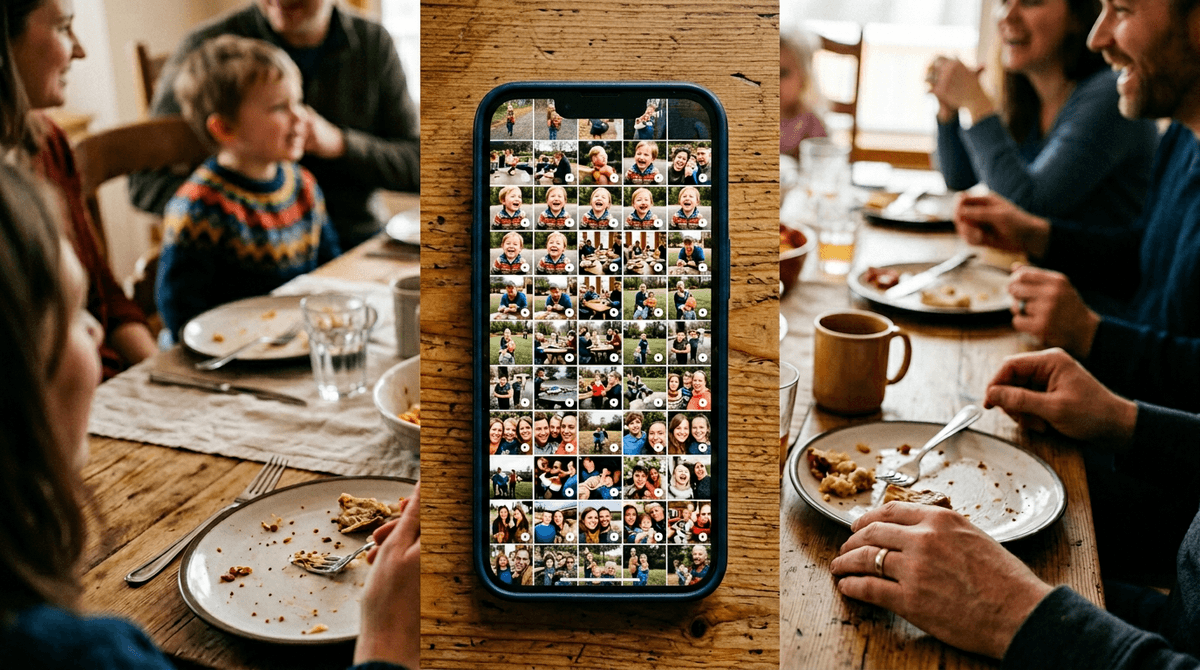
You snap what looks like a normal photo, then later you press and hold it and it “moves.” That’s a Live Photo, and it’s one of the fastest ways Photos grows without you noticing. Each time you tap the shutter, your iPhone saves the still image plus a short slice of video and audio from around that moment. So even if you never use the motion effect, you still paid the storage cost on every shot.
On a busy weekend—kids, a trip, a birthday—those little add-ons stack up quickly. If you take 200 “photos,” you may really be saving 200 photos and 200 tiny videos. That can feel like your storage is draining twice as fast as your habits changed.
The annoying part is how easy it is to leave Live Photos on by accident. The icon looks harmless, and you might turn it on once for a cute moment, then keep shooting for weeks.
Turning Live Photos off—so it stays off next time you open Camera
You open Camera in a hurry, see the little “Live” icon, and tap it off. Then a day later it’s back on again, and you’re not sure why. That usually happens because Camera remembers your last setting only if you tell it to.
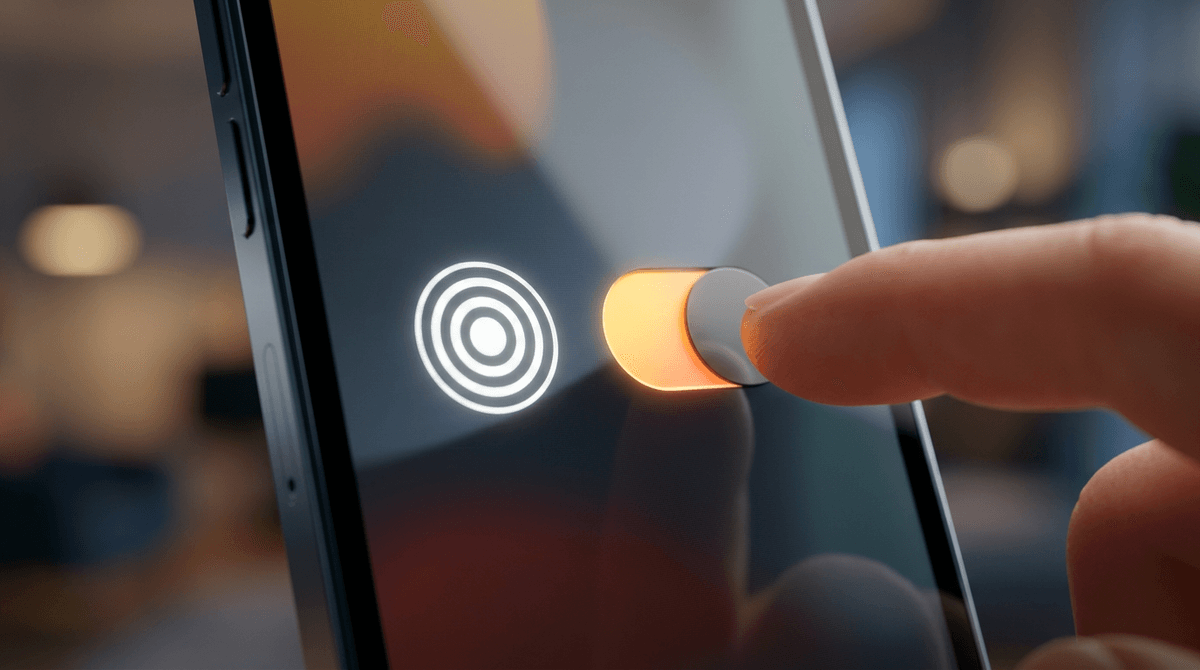
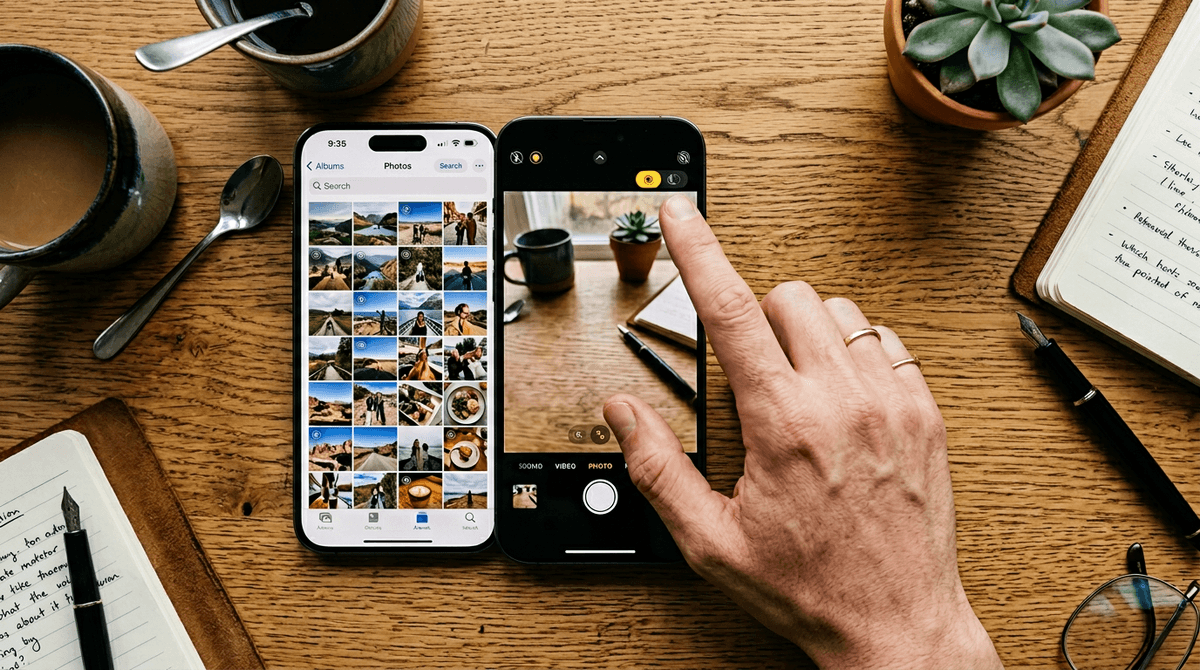
Start in the Camera app: look for the Live Photo icon (a circle with rings) at the top. If it’s lit up, Live is on—tap it so it turns off. Now make it stick: go to Settings > Camera > Preserve Settings and turn on Live Photo. From here on, whatever you set in Camera (on or off) should stay that way the next time you open it.
One real-world catch: if you share a phone with a partner or kids, they can turn Live back on in two taps. If storage is tight, it’s worth checking that icon before a big event where you’ll take a lot of shots.
What about the Live Photos you already took? Three choices with predictable results
You’ll usually notice the problem after the fact: you turned Live Photos off today, but your library is still packed with months (or years) of Live shots. You have three realistic options, and each one behaves in a predictable way.
Choice 1: Leave them alone. Easiest, safest, and it costs nothing in time. Storage won’t drop, but at least it stops growing from this one feature.
Choice 2: Convert a few to stills. Open a Live Photo in Photos, tap ⋯, then Duplicate > Duplicate as Still Photo. After that, delete the original Live version (and empty Recently Deleted) to actually free space. The downside: it’s manual and gets tedious fast.
Choice 3: Let iCloud handle the squeeze. Turn on iCloud Photos and Optimize iPhone Storage. It can free a lot of space, but it requires enough iCloud storage and good Wi‑Fi to finish uploading.
If storage is still tight, check these other “silent” size boosters in Camera
You’ll feel it when you did everything “right” with Live Photos, but your storage still drops after a day of normal shooting. That’s usually because the Camera is saving bigger files per tap in other ways, and you don’t get a warning.
Two common ones: High Efficiency vs Most Compatible and 4K video. Go to Settings > Camera > Formats. High Efficiency usually saves smaller files; Most Compatible can bloat storage, but it helps if you share to older devices. Then check Settings > Camera > Record Video (and Record Slo-mo). 4K/60 eats space fast; 1080p is often plenty for everyday clips.
One real cost: lowering video quality doesn’t shrink videos you already took. To make space without regret, you need a simple routine that keeps new media from piling up.
A simple plan to stop “iPhone Storage Full” without deleting your life
Most people only notice storage when an app won’t update or Camera won’t shoot. The fix that actually lasts is a small routine: before a big photo day, open Camera and confirm Live is off; once a month, check Settings > General > iPhone Storage and see whether Photos is still climbing faster than everything else.
If it is, pick one lever and stick to it: convert only the Live Photos that don’t need motion (start with big events), or turn on iCloud Photos + Optimize iPhone Storage and let the phone keep smaller copies. The catch is time and Wi‑Fi—uploads can take days, and you’ll need enough iCloud storage to finish.