Your phone’s acting weird—should you worry or wait it out?
You notice it in ordinary moments: your battery drops fast, your phone runs hot in your pocket, ads pop up where they never used to, or your data use jumps for no clear reason. Sometimes that’s just a buggy app, low storage, or a bad update. Sometimes it’s something installed that shouldn’t be there.
The hard part is that “wait and see” can cost you. If it’s malware, the first damage is often to your accounts—saved passwords, email, banking, social logins—before you ever lose the phone itself. But rushing can also backfire if you delete the wrong thing and lose photos or lock yourself out.
The safest path is a calm, quick triage: figure out whether this looks like a normal glitch or a real infection, then protect your stuff before you start removing anything.
First, separate “normal glitch” from “this feels like malware”
You tap through a few screens and everything seems fine—until the phone gets hot again, the battery nosedives, or a pop-up appears in a place it shouldn’t. A “normal glitch” usually ties back to one obvious trigger: you just installed an app, updated the OS, ran out of storage, or your phone has been on for weeks without a restart. If the weirdness stops after a reboot and stays gone for a day, that’s a good sign.
“This feels like malware” is more about patterns you can’t explain. Think: pop-ups outside your browser, new apps you don’t remember adding, accessibility or device admin settings suddenly enabled, your browser homepage/search changed, or data use spiking when you’re not streaming. One real-world snag: legitimate ad-heavy apps can look guilty, so don’t delete at random yet—start by listing what changed in the last 48 hours.
Before you touch anything: protect your photos, messages, and accounts
When a phone feels “off,” most people start tapping fast—clearing apps, uninstalling things, resetting settings. That’s exactly when you can lose the only copy of photos or end up locked out of an account after a password change you didn’t make.
Start by getting a clean backup while you still can. On iPhone, run an iCloud Backup (and make sure Photos is syncing). On Android, confirm Google Photos/Drive sync is current, or copy your DCIM folder and important files to a computer. If your phone can’t hold a stable connection, do a wired transfer; it’s slower, but it finishes.
Then protect access. From a different device (a laptop is ideal), change the password on your primary email first, then banking, then Apple ID/Google account, and turn on two-factor authentication if it isn’t already. A real limitation: if malware is watching your screen, changing passwords on the suspect phone can just hand over the new ones—so do it elsewhere before you start cleaning.
Where did it come from? A quick sweep for the usual culprits
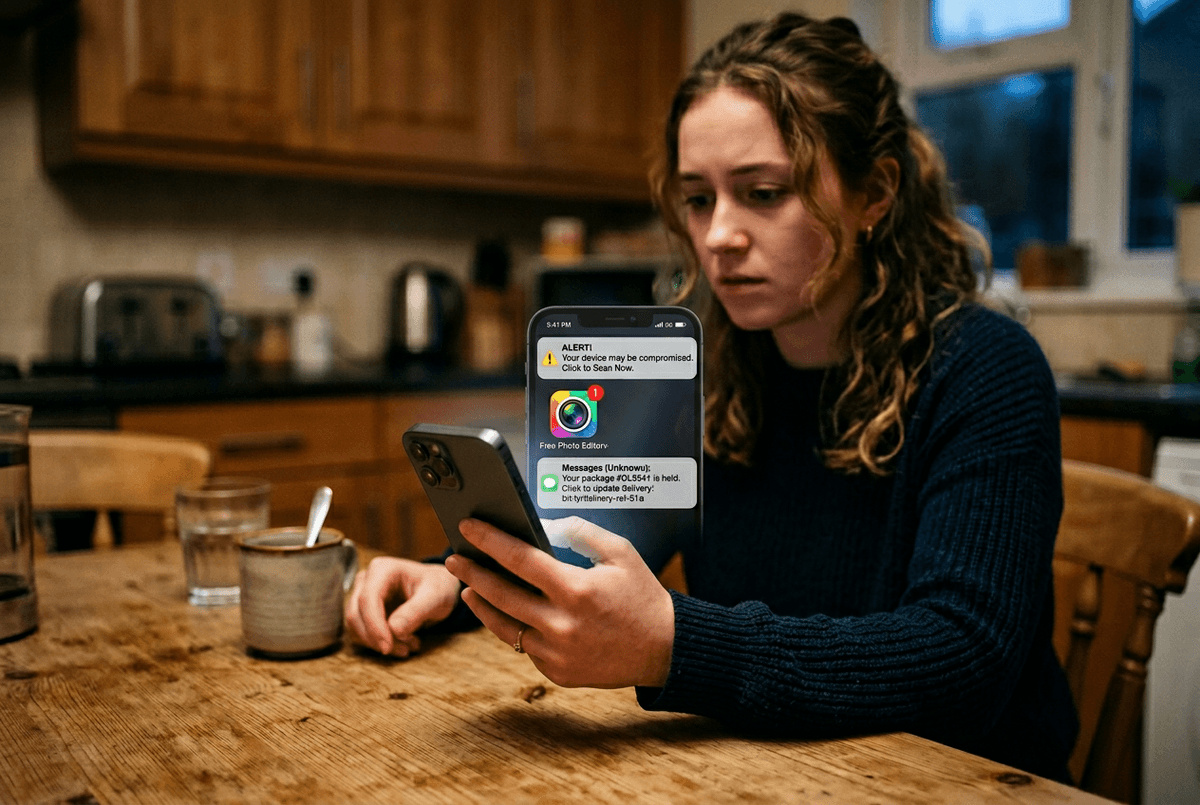
Most infections don’t arrive like a movie hack. They show up after something normal: you installed a “free” app to edit photos, tapped a delivery text link, accepted a calendar invite that suddenly floods you with alerts, or allowed one permission because the app wouldn’t run without it.
Do a fast “what changed” sweep. Check your recent installs and remove anything you don’t recognize or that you only needed once. On Android, look for apps with Accessibility access, Device Admin access, or “Install unknown apps” enabled; those are common footholds. On iPhone, check Settings for any Profiles/Device Management entries you didn’t add (work/school tools are the usual legit ones). Also open your browser settings and look for new extensions, changed search engine, or a pile of site notifications.
The annoying part: plenty of legitimate apps ask for too much. If you can’t explain why an app needs those powers, treat it as suspect and keep digging.
If you delete the wrong thing, will your phone break? What to remove safely
You’re usually staring at an app list thinking, “If I uninstall this, will my phone stop working?” In most cases, removing a regular app is safe. The risk comes from deleting core system pieces, work/school management tools, or anything tied to how you sign in.
Start with what you installed yourself, especially anything added in the last couple days. On iPhone, it’s safe to delete unfamiliar apps, and delete Profiles/Device Management entries you didn’t set up (but if it’s a work phone, removing that profile can break email, Wi‑Fi, or required apps). On Android, uninstall suspicious apps first, then revoke their power: turn off Accessibility access, Device Admin apps, and “Install unknown apps” for anything you don’t trust. If an app won’t uninstall, that’s a signal it has elevated access—remove that access first, then try again.
A concrete downside: some “cleaner” or “antivirus” apps cause the same pop-ups and battery drain you’re trying to fix, so don’t add new ones yet—clean up what’s already there, then scan carefully.
Scan and update without installing more trouble
You uninstall the obvious junk, reboot, and the phone still feels “sticky”—battery drain, random redirects, or a pop-up that comes back. That’s when scanning and updating help, but only if you keep it boring. Use the built-in options first: on iPhone, update iOS in Settings and review installed apps; iOS doesn’t allow traditional antivirus scanning. On Android, update Android and Google Play system updates, then run Google Play Protect (Play Store > Play Protect) and scan. If you already have a reputable security app installed from before the problem started, run it once—don’t shop for a new one while you’re stressed.
The real-world snag is fake “security” tools. If an app promises “100% detection,” demands Accessibility access, or pushes you to install a second helper app, back out. After updates and a scan, check whether the weird behavior is gone before you change anything else.
When the only reliable next step is a reset (and how to do it without regret)
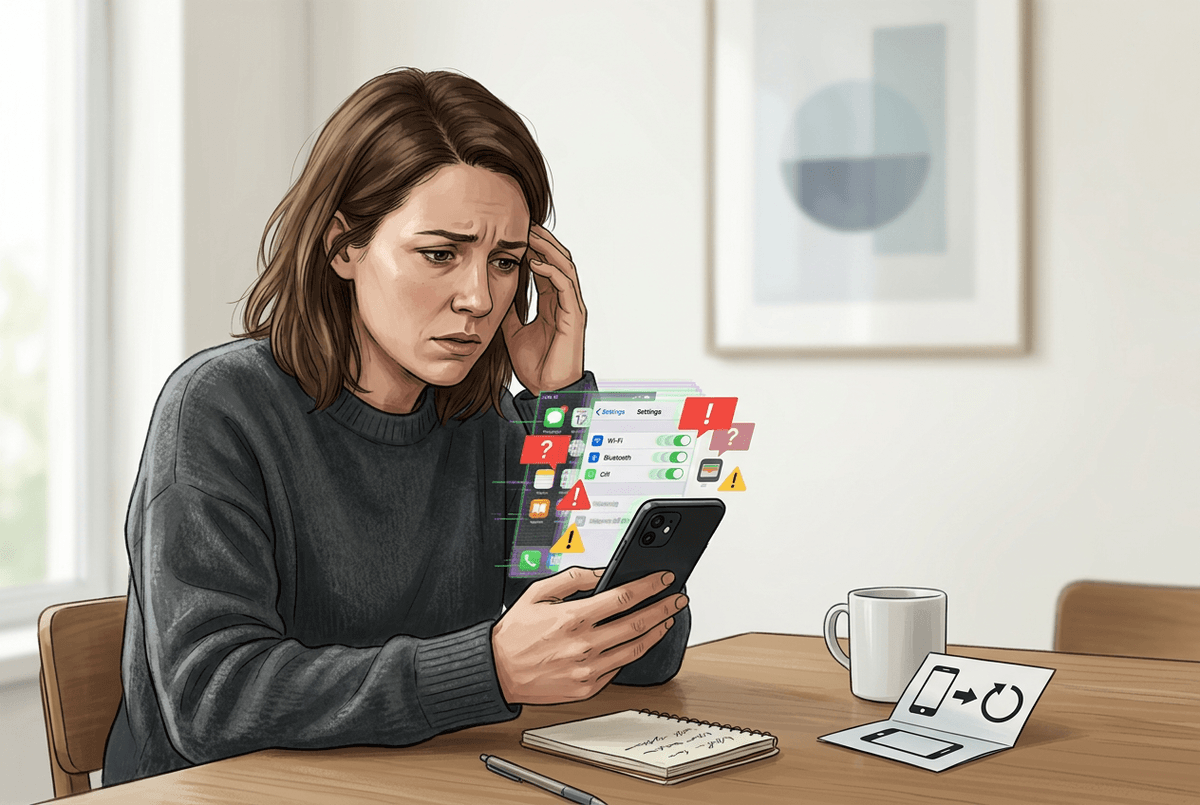
Sometimes you do everything “right” and the phone still won’t settle down: an app keeps reappearing, pop-ups return after each reboot, or settings flip back on their own. That’s the moment a factory reset becomes the cleanest move, because it wipes the stuff you can’t see hiding in the background. The cost is real: you’ll lose anything that isn’t backed up, and you’ll spend time signing back into everything.
Before you reset, take two minutes to reduce regret. Confirm your photos and messages are synced, write down your key logins, and remove any unknown Profiles (iPhone) or Device Admin/Accessibility control (Android) so they don’t interfere. Then do a full factory reset from Settings (not from a random “reset” app). After it restarts, set up as new if you can; restoring a full device backup can reintroduce the same problem, so reinstall apps one by one and watch for the first sign of trouble.
You’re back in control: what to monitor next week
The next week is where you confirm the fix actually holds. Check battery and data use once a day in Settings; one app jumping to the top when you barely used it is worth investigating. Watch for quiet changes: a browser search engine you didn’t pick, new site-notification spam, or Accessibility/Device Admin settings turning back on (Android).
Also watch your accounts. Review recent sign-ins for your main email and Apple ID/Google account, and skim bank and card alerts. A real constraint: some damage shows up late, so if anything reappears, stop reinstalling apps and get outside help.