
Why I tested five free Microsoft 365 replacements
Most people don’t quit Microsoft 365 because they stop needing Word, Excel, or PowerPoint. They quit because the subscription, sign-ins, and “your storage is full” prompts keep piling up, even when all they want is to edit a few .docx files, track a budget in .xlsx, or tweak a .pptx deck before class or a client call.
I tested five free replacements because “free” often hides a cost somewhere else: broken formatting, missing formulas, slow imports, or sharing that turns into a mess of duplicate copies. A tool can look fine on a blank document and still fall apart on the files you already have. The only way to know is to stress it with real, slightly scary files.
So I started with the risk that matters most: opening one document that already has picky formatting and seeing what survives.
Start with one scary file: will formatting survive?
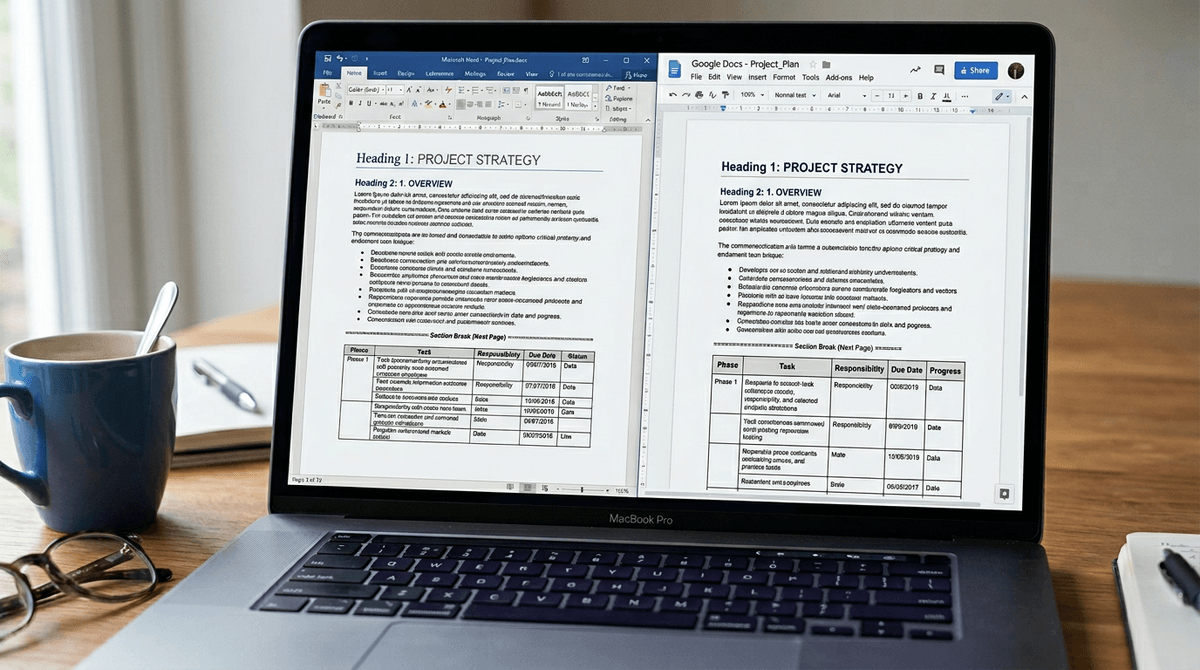
You usually find out compatibility the hard way: you open an old .docx résumé or a class paper and the headings jump, the bullets change size, and the page count shifts. That’s why I started with one “scary” file—something with a table, mixed fonts, indents, and a couple of section breaks—then opened it in each free app without “fixing” anything.
I looked for three quick tells: did it keep margins and line spacing, did tables stay aligned, and did styles still behave when I edited a paragraph. If an app converts everything into direct formatting, you can’t reliably update the whole document later. The real snag: even when it looks right on screen, printing or exporting to PDF can change spacing, so I treated “looks fine” as only step one.
When the Wi‑Fi drops, what still works offline?
You notice offline limits the moment you’re on a train, in a lecture hall, or a client’s office where the guest Wi‑Fi blocks half your logins. Some “free Office” options are really web apps, which means you can open files only after the page loads and your account checks out. If the connection drops mid-edit, you may get stuck staring at a spinner with unsaved changes.
I treated offline like a simple pass/fail: can I open a local .docx/.xlsx/.pptx, edit for ten minutes, and save without reconnecting. Apps that install on your computer usually pass this, but the cost shows up elsewhere: larger downloads, slower updates, and occasional font differences if your device doesn’t have the same fonts as the original file. The moment you go back online, sync conflicts are the next thing to test.
Sharing a doc without chaos: links, comments, versions

You feel sharing problems when a file leaves your laptop and comes back as “Final_FINAL_v3.docx.” If an app can’t generate a stable share link, people fall back to attachments, and you lose any single source of truth. The minimum I looked for: link sharing with view vs edit access, and a way to revoke access without hunting down every copy.
Comments are the next stress test. If the tool flattens Word-style comments into plain text, you can’t resolve feedback cleanly, and it’s hard to tell what changed. Version history matters even more when two people edit at once. Some free tools keep versions only in their own cloud, so opening from local storage can erase that safety net. If you plan to collaborate, test this before you migrate everything.
The Excel reality check: formulas, charts, and imports
You notice spreadsheet compatibility the moment you open a real budget, invoice tracker, or gradebook and the totals don’t match what you remember. I tested each app with one .xlsx that uses common formulas (SUMIFS, IF, XLOOKUP/VLOOKUP), named ranges, and a couple of conditional formatting rules, then changed inputs to see if results updated correctly. If an app silently replaces an unsupported formula with a value, you won’t spot it until the next month’s numbers look “off.”
Charts and imports are where “mostly works” can still waste an afternoon. I imported a bank CSV, checked date parsing and thousands separators, then refreshed a simple pivot-style summary. Some tools stumble on merged cells, filters, or large sheets, and the slowdown feels like typing through mud. Before switching, test one file that you actually rely on for decisions, not a blank sample.
Slides and PDFs: can it handle school and client decks?
You feel slide compatibility pressure when a deck has to present cleanly on someone else’s screen. I used one “real” .pptx with theme fonts, speaker notes, a few images, and a chart copied from .xlsx, then opened it in each app and advanced through in presentation mode. The quick tells: do text boxes reflow (changing line breaks), do images shift or crop, and do animations or transitions disappear. If your deck is heavy on SmartArt or custom fonts, expect at least one surprise unless you install the same fonts locally.
PDF handling matters because it’s the escape hatch when you don’t trust editing. I checked export quality (sharp text, working links, consistent page breaks) and whether the tool could annotate or at least avoid mangling spacing. The annoying constraint: some free options export fine but can’t reliably import PDFs back into editable docs, which shapes how you deliver finals.
My shortlist: which two apps to try first
You usually don’t need the “best” free suite—you need the one that matches how you actually work week to week. If most of your files live in .docx/.xlsx/.pptx and you want the least formatting drama, start with LibreOffice as your offline-first workhorse. It’s the option I’d trust first for opening local files, editing without Wi‑Fi, and keeping enough Excel behavior (formulas, imports, charts) to avoid surprise totals. The downside is real: the interface feels heavier, and cross-app sharing isn’t as smooth unless everyone agrees on the same workflow.
If your pain point is sending links, collecting comments, and avoiding “Final_v7” chaos, try Google Docs/Sheets/Slides next. It makes collaboration and version history hard to mess up, and you can work from any device fast. The catch is compatibility: complex .docx layout and picky .pptx formatting can shift, and offline use depends on setup ahead of time. With those two installed and tested on your “scary” files, choosing gets much easier.
Your lowest-risk next step after choosing an app
You’ll avoid most switching pain by treating this like a two-week trial, not a one-day migration. Pick one “home” folder (maybe 10–20 files) and make copies, then set your new app as the default only for that folder. Edit a résumé-style .docx, one “real” budget .xlsx, and one deck you actually present, then export each to PDF and print one page to catch spacing surprises.
Keep Microsoft files read-only elsewhere until you’ve shared one link, collected one round of comments, and reopened everything on a second device. The annoying cost is time: you’ll spend an hour up front, but it beats finding a broken chart the night before it’s due.