
You saw a hack story—now what actually matters?
You read a “my Steam got hacked” post, change your password, and hope that’s enough. It usually isn’t. Most takeovers don’t come from someone guessing your password—they come from you handing it over on a fake login page, or from a session that stays active after the attacker gets in once. That’s why “stronger password” advice often feels useless in real life.
What matters is whether a new login can be blocked even if your password gets typed into the wrong box. For most Steam users with valuable libraries or tradable items, the single setting that changes the outcome is Steam Guard’s Mobile Authenticator—if you set it up in a way that won’t trap you when your phone is gone.
What most Steam account takeovers look like now
You click a “Steam Support” link in a Discord DM, a trade site, or a Google result, and it looks normal. You log in once, the page “loads,” and nothing seems to happen—until you get a real Steam email about a new device, your inventory starts moving, or your friends get spam from your account.
In a lot of takeovers, the attacker doesn’t need to keep typing your password. They grab a working login session (or an API key), then use it to approve trades, change contact details, or add their own authenticator later. That’s why people swear they “changed the password fast” and still lose items.
The hard part is that the warning signs are quiet: one new authorized device, one new email rule, one trade confirmation you didn’t initiate. That’s the shape of the problem the right Steam Guard setup is meant to stop.
A new password won’t fix an active hijack
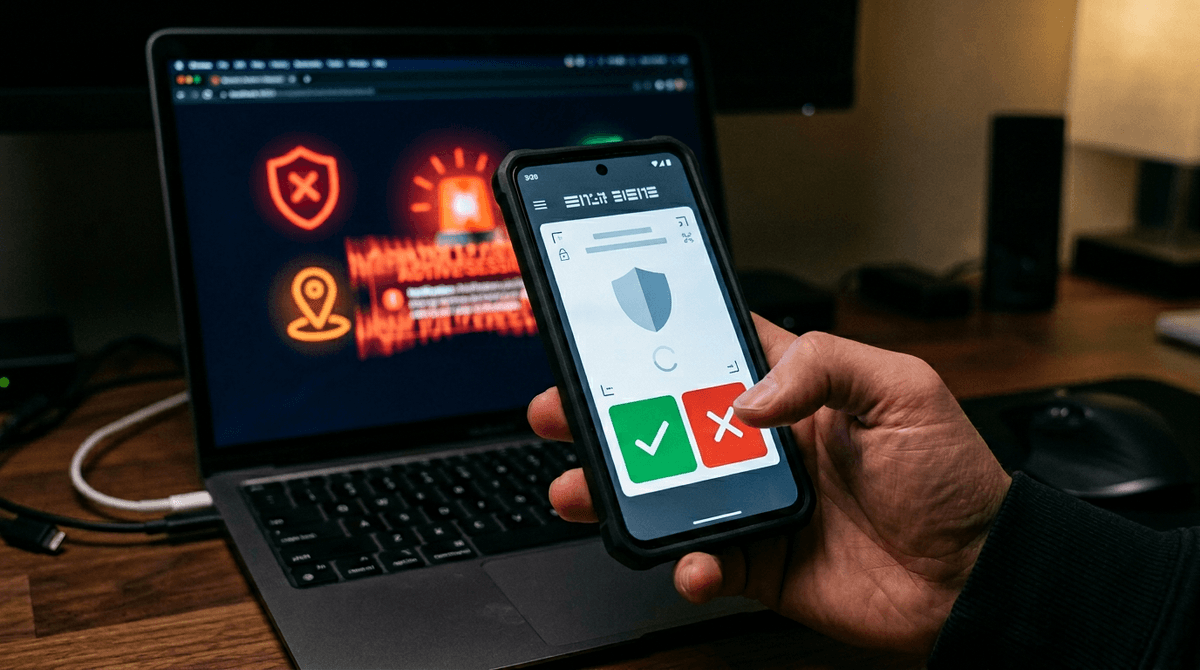
You change your password, Steam says it worked, and the panic drops a notch. Then you notice you’re still getting Steam Guard emails you didn’t request, your friends see weird messages, or your inventory history shows activity you didn’t start. That’s what an active hijack feels like: the attacker is already “inside,” and a password change doesn’t automatically kick them out everywhere.
If the attacker has a live session, they can often keep moving without re-entering your password—opening a trade, changing profile details, or setting up an API key so trades route through their setup. Even worse, you can end up playing whack-a-mole: new password, new login, same problem.
To actually cut them off, you need a second step that blocks new logins and forces re-approval from your device. That’s where the Mobile Authenticator earns its keep, and the setup details matter.
Steam Guard Mobile Authenticator: the one switch to flip
You’ll usually notice the moment you try to sign in on a new PC: Steam asks for a code, and email-based codes feel “good enough” until you realize anyone who gets into your email can clear that hurdle too. The Mobile Authenticator changes the math because the approval lives on your phone, and most takeover attempts die right there. Even if your password gets phished, a fresh login still needs a code from the device in your hand.
Turn it on inside the Steam mobile app: open the menu, go to Steam Guard, and choose the Mobile Authenticator option. From then on, treat your phone like a key, not a convenience. When a login prompt appears that you didn’t start, deny it and assume your password is already compromised.
The real-world downside is simple: lose the phone and you can lock yourself into delays or recovery loops. Before you relax, confirm your phone number and email are correct, and save your recovery code somewhere offline (password manager or printed). Then you can start cleaning up sessions and trades without guessing what’s still exposed.
Set it up without getting locked out later
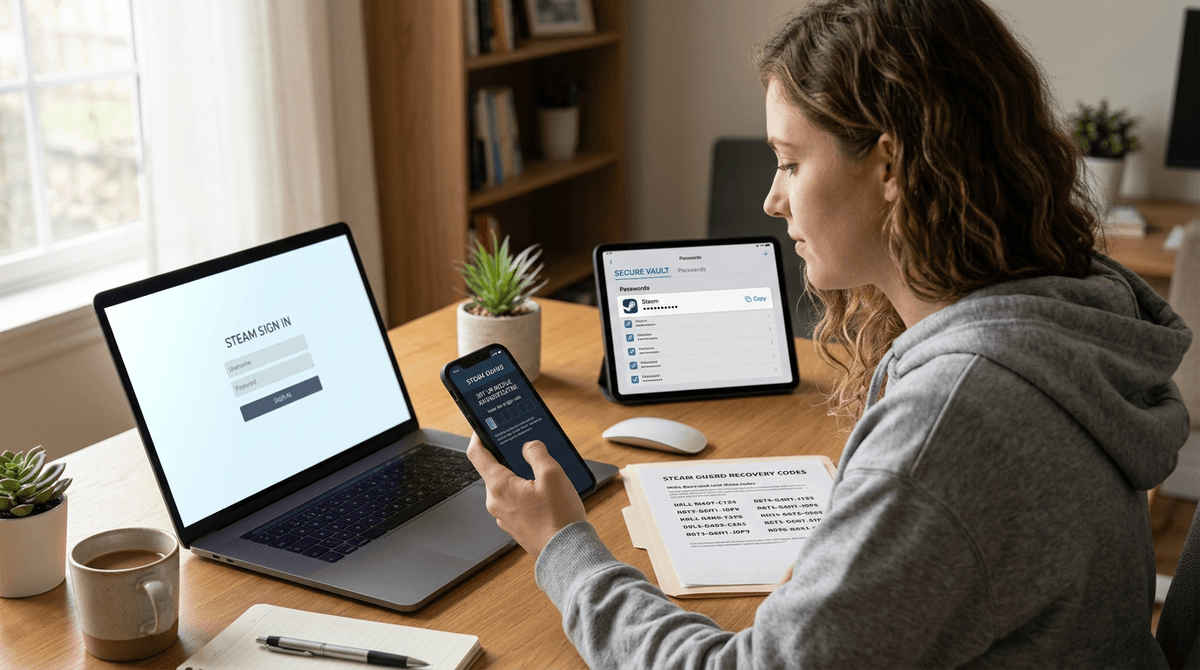
You install the Steam app, flip on the Mobile Authenticator, and then later you replace your phone, wipe it, or it dies. That’s when people find out they never finished the “boring” parts: the phone number was old, the email was a burner, or the recovery code was never saved. The result isn’t permanent loss for most users, but it can mean waiting through account recovery while your items sit exposed.
Before you treat the authenticator as “done,” make it survive a bad day. Confirm the phone number and email on the account are current and you can actually receive messages on both. Then save the Steam recovery code somewhere you won’t lose with the phone—ideally a password manager, or printed and stored with other important papers. Don’t screenshot it and leave it in your camera roll.
If you use Family View, parental controls, or you share a PC, expect extra friction when you re-auth on a new device. Do a test: sign in on a second device you control, approve it, then remove that device so you know the loop works before you need it under stress.
Real phishing tells before you type your password
You’re about to sign in because a friend “needs you to vote,” a trade site promises a bonus, or “Steam Support” wants to “verify ownership.” The page looks right, and that’s the point. Before you type anything, check the address bar like it’s a lock on a door: it should be steamcommunity.com, steampowered.com, or help.steampowered.com—not a misspelling, extra words, or a different ending like .ru or .xyz.
Then watch the login flow. A lot of fakes won’t let you log in through your already-signed-in Steam session; they force you to type your password into a web form, sometimes even asking for your Steam Guard code “to confirm.” Steam doesn’t need your Mobile Authenticator code on a random site to “verify” you. If it asks for your recovery code, it’s a trap.
The annoying reality is you’ll sometimes block a legit third-party service. That’s fine. Your next step should be a fast lockdown check so you can trade again without guessing what’s still active.
Your 10-minute lockdown check before trading again
You’re about to trade again, but you don’t know whether an old session is still open somewhere. Do a quick sweep: in Steam, change your password and immediately “deauthorize all other devices” (or sign out of all devices), then sign back in and approve only your current phone and PC. Check your account email and phone number one more time, and remove any unfamiliar authorized devices.
Then open your inventory history and recent trade confirmations. If anything looks off, cancel pending trades, revoke any Steam Web API key you didn’t set, and pause trading for a day. The annoying part is you might sign out a shared PC and break auto-logins, but it’s better than guessing.