The moment email bounces: what are you sending, really?
You attach a video or zipped folder, hit send, and email pushes back: “message too large.” That’s the easy failure. The harder one is when it “sends,” but the upload crawls, the recipient can’t download on their phone, or the file gets stripped by a security filter.
Before you pick a tool, name what you’re actually delivering: one big file, a folder full of many files, or something that changes after you send it (like a design package with last-minute fixes). File size matters, but so does format and count—lots of small files can break more often than one archive.
Be realistic about your recipient, too. If they’re a client on a locked-down corporate laptop, anything that requires an app install or account signup can stall the whole job. That choice—one-time handoff or ongoing access—sets up the fastest path forward.
One-time delivery or a link you’ll reuse all week?
You send a draft today, a revision tomorrow, and “final-final” on Friday. If you treat each update like a fresh transfer, you create a new link every time, the recipient keeps guessing which one is current, and you burn time answering “is this the latest?” A shared link to a folder or project space avoids that because the link stays the same while the contents change. It’s the right move when the work is still moving—design packages, slide decks with feedback, or video cuts that keep getting replaced.
One-time delivery still has a place. If you’re handing off a finished export, legal packet, or a single large ZIP, a transfer-style link can be cleaner because it’s meant to be downloaded and done. The cost shows up later: many transfer services expire links by default, and some don’t handle “replace the file but keep the link” without upgrading.
Make the choice by asking one question: will you need the same link to stay valid after today? Once you know that, you can start filtering tools by recipient effort and reliability.
How much friction will your recipient tolerate today?
You send a link, and then the waiting starts: “Do I need an account?” “Where’s the download button?” “Why is it asking for an app?” That back-and-forth is usually the real delay, not the upload. If your recipient is already juggling calls and approvals, every extra step raises the odds they give up or postpone it.
If they’re on a corporate device, assume tighter rules. Personal email addresses often work with almost anything, but a company inbox may block unfamiliar domains, strip “download” buttons, or require a security scan that times out on big files. In that case, a simple browser download with no signup beats a tool that’s “better” on paper but asks for a login.
Keep friction low unless you have a clear reason not to. Once you do need more control—like a password or a way to prove it was downloaded—the right tool changes again.
When speed fails: picking tools that survive bad networks

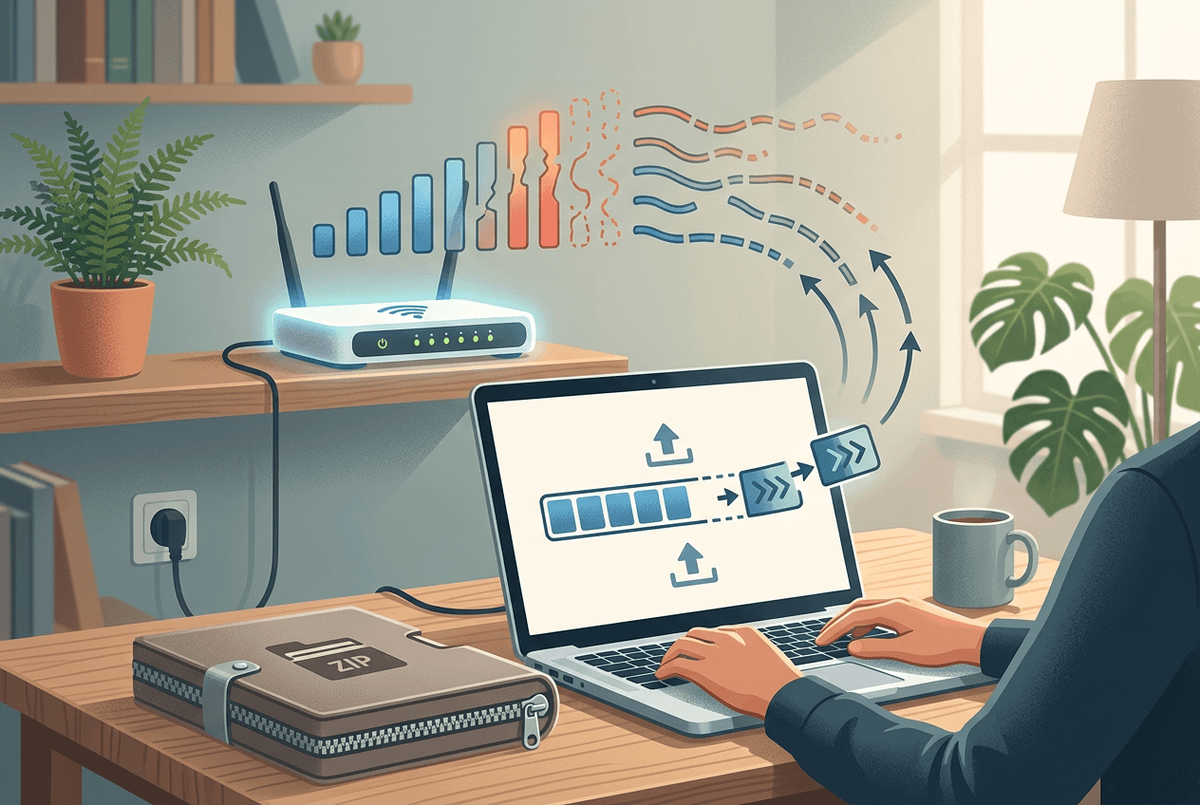
You upload from a hotel Wi‑Fi, a coffee shop hotspot, or a client site with a crowded guest network. The progress bar jumps, stalls, then fails at 92%. If you’re sending from anywhere other than a stable office connection, “fast” matters less than “can resume without starting over.” Look for services that support resumable uploads (often called chunked uploads) and that keep working if your browser refreshes or your laptop sleeps.
Downloads fail the same way. A single-click “download in browser” link usually survives better than tools that push the recipient into a desktop sync app or a multi-step “verify email” flow. If the recipient’s connection is weak, a direct link to one ZIP can be easier than a shared folder full of dozens of files, because each file becomes another chance to time out.
There’s a real cost: the most reliable options often store the file longer, scan it, or throttle free accounts during busy hours, so “send now” can still turn into “wait.” When that happens, choosing between transfer links and cloud storage stops being about convenience and starts being about failure modes.
Do you need expiry, passwords, or “who downloaded” proof?
You send a link, and then someone forwards it. Or it sits in an inbox for weeks and gets opened long after the project ended. That’s when “it downloaded” isn’t enough—you need the link to stop working on a schedule, or you need the recipient to jump one small hurdle before access.
Expiry is the simplest control, but it can bite you. If you set “24 hours” and approvals slip, you’ll resend the file and restart the whole thread. A safer pattern is a short expiry only for true one-off handoffs, and a longer-lived folder link when updates are still happening. Passwords help when the link might travel, but they add a second channel you must manage (texting the password, storing it, resetting it when it gets lost).
“Who downloaded” proof is where tools split. Some only show “link opened,” which can be triggered by previews or security scanners. If you need audit-style logs, expect more friction: sign-ins, recipient verification, or paid plans. That decision usually forces the next question—do you want controlled access in cloud storage, or a transfer link built for tracking?
Match your situation to services that consistently work
You’re usually choosing under pressure: the client wants it today, your upload is already running, and you don’t want to learn a new tool mid-send. A simple rule keeps you out of trouble: if the recipient should download once and be done, use a transfer service built for one-off links (WeTransfer, Smash, or Dropbox Transfer). If the recipient needs to come back all week, use cloud storage sharing (Dropbox, Google Drive, OneDrive) so the link stays stable while you replace files.
For locked-down corporate recipients, default to the most “boring” option they already trust: a Drive/OneDrive/Dropbox link that opens in a browser without an install. If your network is flaky, pick tools known for resumable uploads and folder zips (Dropbox and Drive tend to recover better than lightweight transfer pages). The downside is real: cloud links can confuse people if they land in a folder view, and transfer links can expire before someone gets approval.
If you need passwords, expiry, or download logs, expect to pay and expect more steps. That’s when it’s worth slowing down and doing a quick pre-send check.
A quick checklist before you hit send again
You’re about to hit send and you want it to work without a second email. Run this quick check: are you sending a single finished file (transfer link) or something that will change (shared folder link)? Will the recipient be blocked by signup, an app install, or a “new” domain? If yes, pick Drive/OneDrive/Dropbox and keep it browser-based. Are you on weak Wi‑Fi? Choose a tool with resumable uploads and consider one ZIP instead of many files.
Set controls with the calendar in mind: expiry only if you’re sure approvals won’t slip, and passwords only if you can share them cleanly. If you truly need “who downloaded,” confirm what counts as a download and what requires a paid plan before you promise proof.