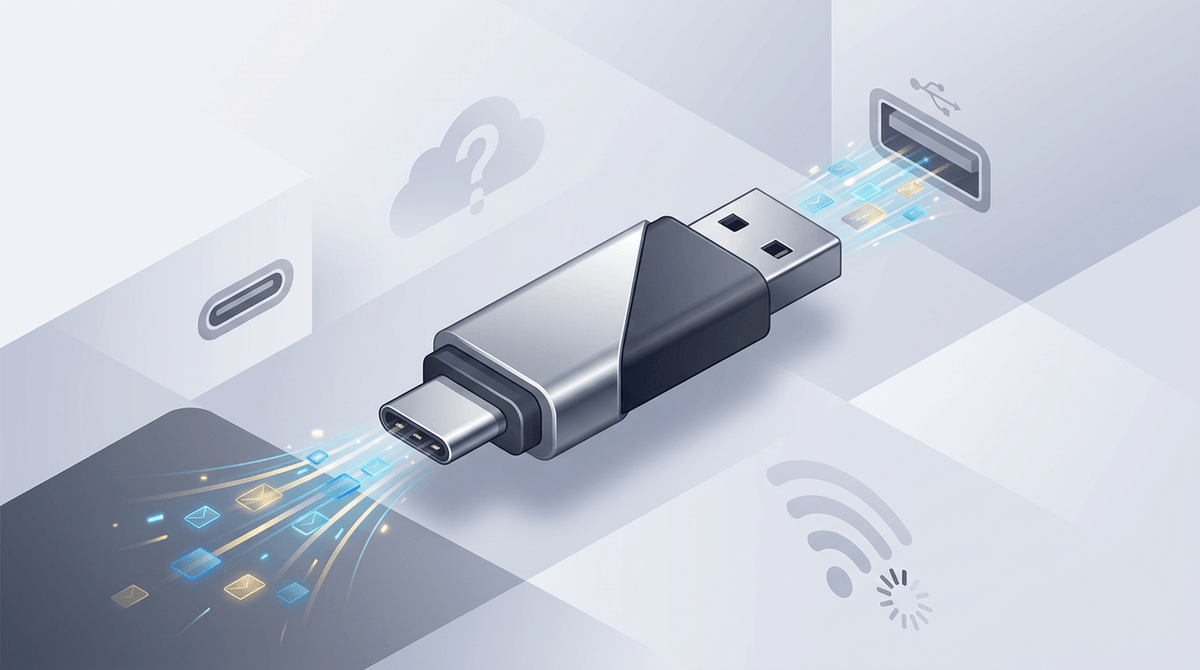
When TeamViewer stops feeling predictable for your team
It usually starts small: a tech jumps on a quick remote session, and the tool that “always works” suddenly throws a suspected-commercial-use warning or blocks the connection when you need it most. Even if you can fix it later, you still lose time in the moment—an employee is waiting, a customer is watching, and your team looks stuck.
That unpredictability gets worse as soon as more than one person needs access. One shared account turns into password handoffs, people stepping on each other’s sessions, and awkward gaps in audit trails. “Free for personal use” also stops fitting the way support actually happens at a small business. The goal isn’t a perfect feature list; it’s a remote tool your team can use every day without surprises, starting with why the licensing friction keeps showing up.
Spot the real triggers behind TeamViewer licensing friction
A common pattern is that nothing “changes” on your end, but the way you use TeamViewer slowly starts to look commercial: more sessions per day, more distinct endpoints, longer connections, and more jumps between unrelated machines. If a tech helps an employee’s home laptop in the morning, a client PC at lunch, and a server after hours, that mix can trigger checks even if the work feels routine.
Another trigger is how accounts get shared. Logging in from different locations, rotating through multiple techs, or running sessions from several office PCs can look like a team license without being one. The downside is the time cost: you can’t plan around a lockout mid-ticket.
When you compare HelpWire, write down what “free” covers, how many techs can sign in, and whether sessions stay reliable across many endpoints.
Does “free” still work when multiple techs need access?
In a small support team, “free” breaks the moment two techs need to help at the same time. If one person has to stay logged in, everyone else waits. If you share a login, you trade speed for mess: constant sign-ins, lost accountability, and the same “this looks commercial” pattern you were trying to avoid.
When you check whether HelpWire can replace TeamViewer, treat “free” as a team question, not a price tag. Can each tech have their own account? Can two sessions run in parallel without kicking someone out? Is there a clear limit on endpoints, session length, or unattended access that will show up mid-week, not on day one?
The practical catch is support coverage: a tool that’s free but single-user still forces scheduling, and that cost shows up as ticket backlog fast.
First session speed: install, connect, and start helping
The first time you try a new remote tool is usually during a live ticket: someone’s locked out, a printer is down, or a point-of-sale screen is frozen. If install requires admin rights, a reboot, or a long download, you won’t get a fair test—you’ll abandon it and fall back to what’s familiar.
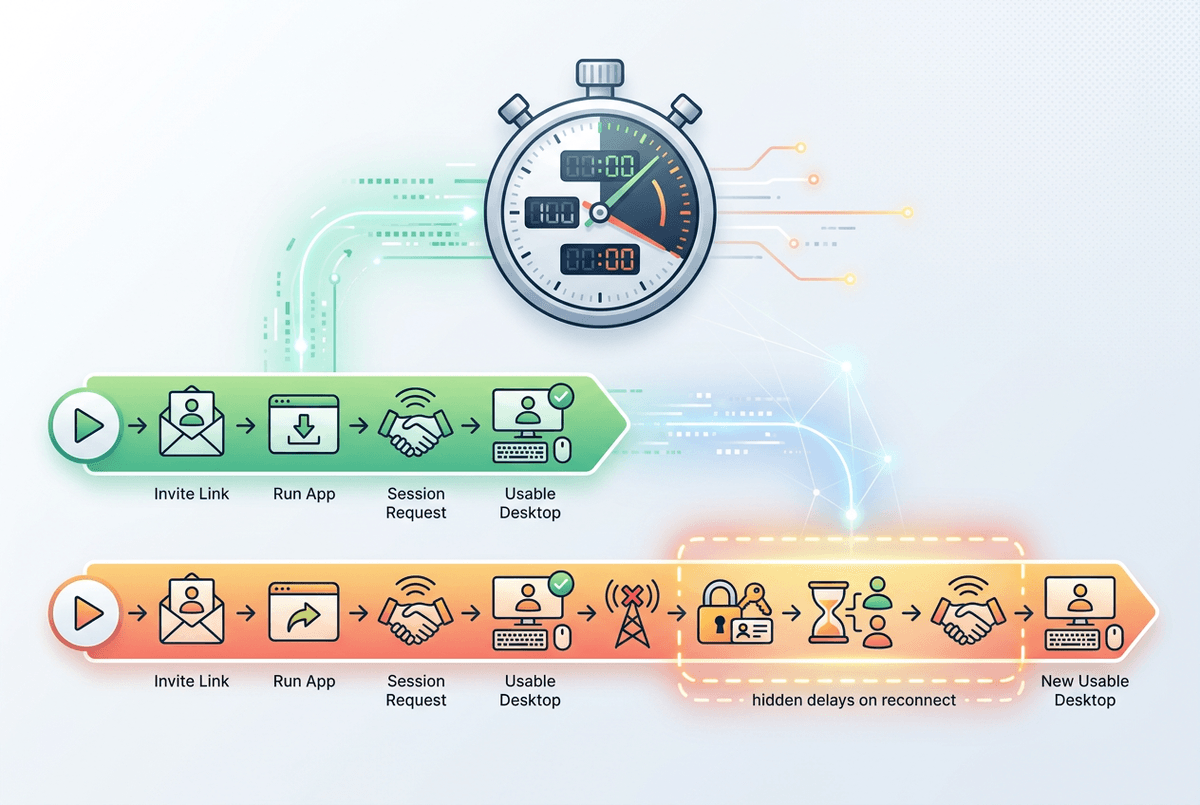
When you compare HelpWire to TeamViewer, time the full path: send the invite/link, get the customer to run it, see the session request, and reach a usable desktop. Note what the user has to click and what they might hesitate on (browser warnings, “unknown publisher,” or OS permission prompts). Also watch for the hidden delay: if the first connection works but reconnect takes longer, that’s where day-to-day support starts to drag.
Once the first session feels repeatable, the next question is whether your team can run it cleanly without shared credentials.
Team workflow without shared passwords or fragile workarounds
In practice, a “team workflow” shows up when two tickets land at once: one tech needs to stay on a long troubleshooting session while another jumps into a quick password reset. If the tool forces a shared login, you get a constant shuffle—someone gets signed out, sessions overlap, and you stop knowing who did what on a customer machine.
When you evaluate HelpWire against TeamViewer, check whether each tech can have their own sign-in and whether sessions are tied to that identity in a simple activity log. Then test the everyday handoff: can Tech A start a session, Tech B join or take over when the shift changes, and does the remote user see a clear prompt instead of a confusing reconnect loop?
The real-world snag is permissions. If the tool makes you reuse a single “admin” account to reach unattended endpoints, you’ve just recreated the same fragile setup under a new name.
Reliability checkpoints you can verify on real endpoints

Support tools often look stable on your own test PC, then stumble on the machines you actually touch: an older Windows laptop on home Wi‑Fi, a Mac on a guest network, or a locked-down office desktop behind a firewall. Run your HelpWire check on those “messy” endpoints on purpose, because that’s where TeamViewer sessions tend to feel unpredictable.
Verify a few repeatable checkpoints: connect while the user is on the login screen, then trigger a UAC prompt and confirm you can still see and control it. Test reconnect after the user reboots, sleeps the laptop, or switches networks. If you support multiple monitors, check that switching displays doesn’t lag or resize badly. Try clipboard and a small file transfer, then note whether either silently fails.
Expect at least one constraint: some environments will require whitelisting domains/ports or user approval every time. Once reliability holds up, you can start looking for security signals worth trusting at scale.
Security signals to confirm before you trust it widely
Most teams don’t worry about security until the tool lands on a customer laptop or an employee’s home machine and someone asks, “What did we just install?” Before you roll HelpWire out broadly, verify a few signals you can check without reading a whitepaper: the download should be signed by a known publisher, the app should request only the permissions it needs for remote control, and the session should clearly show when control is active and how the user can end it.
Then confirm the access model matches how you actually work. Each tech should have their own account, and you should be able to remove one person’s access without changing everyone else’s credentials. If the product offers unattended access, check how it’s granted (device approval, passcode, or policy) and whether you can revoke it per endpoint.
One practical snag: security features can add steps. If every connection requires a long approval flow, techs will look for shortcuts, and that’s where messy workarounds come back. A short pilot should prove security and speed at the same time.
Run a short pilot that makes the switch low-risk
A pilot goes sideways when it’s too “clean.” Pick 10–15 real endpoints you actually support: one older Windows laptop, one Mac, one machine on home Wi‑Fi, and a locked-down office PC. Run two techs in parallel for a week and keep TeamViewer as the backstop, so tickets don’t stall if you hit a blocker.
Track only what decides the switch: time-to-connect, reconnect success after reboot, UAC/login-screen control, and whether each tech can sign in and hand off sessions without shared passwords. Expect a cost: you may need to whitelist domains/ports or standardize how users launch the client. If those steps are repeatable, you’re ready to cut over ticket-by-ticket.