My PS4 felt slow, and I wasn’t upgrading consoles
The slowdown sneaks up on you. One day a game boots in a minute, and a few months later you’re staring at long black screens, slow fast-travel, and menus that feel sticky even after a rebuild database and a fresh dust-out. I hit that point with my PS4 and realized I wasn’t buying a new console just to make loading less annoying.
An SSD swap is one of the few upgrades you can actually feel day to day, but it’s also easy to oversell. The PS4 won’t suddenly look better, and some games still take their time because of how they stream data or cap load steps. The real question is whether the “faster enough” parts match what you do most.
That’s the decision to make before you spend money and crack the case: will an SSD change the waits you personally hate, or just move them around?
Will an SSD actually feel faster on PS4?
You’ll notice it the first time you jump between a couple big games and the PS4 doesn’t sit on that long “please wait” pause before the menu appears. With an SSD, the system spends less time hunting for lots of tiny files, so boots, respawns, fast-travel, and opening maps tend to feel quicker and more consistent.
There’s a ceiling, though. The original and Slim models use a slower SATA interface, so a “7,000 MB/s” spec on the box doesn’t matter here; you’re buying responsiveness, not headline speed. Some games still load in chunks or hit built-in timers, so you’ll get shorter waits, not zero waits. Big installs and “copying” screens can also stay stubborn because they’re limited by how the game packages data and how the PS4 verifies it.
If that sounds like the kind of speed-up you want, the next step is picking a 2.5-inch SATA SSD that makes sense on price and reliability.
Picking the right 2.5-inch SATA SSD without overpaying
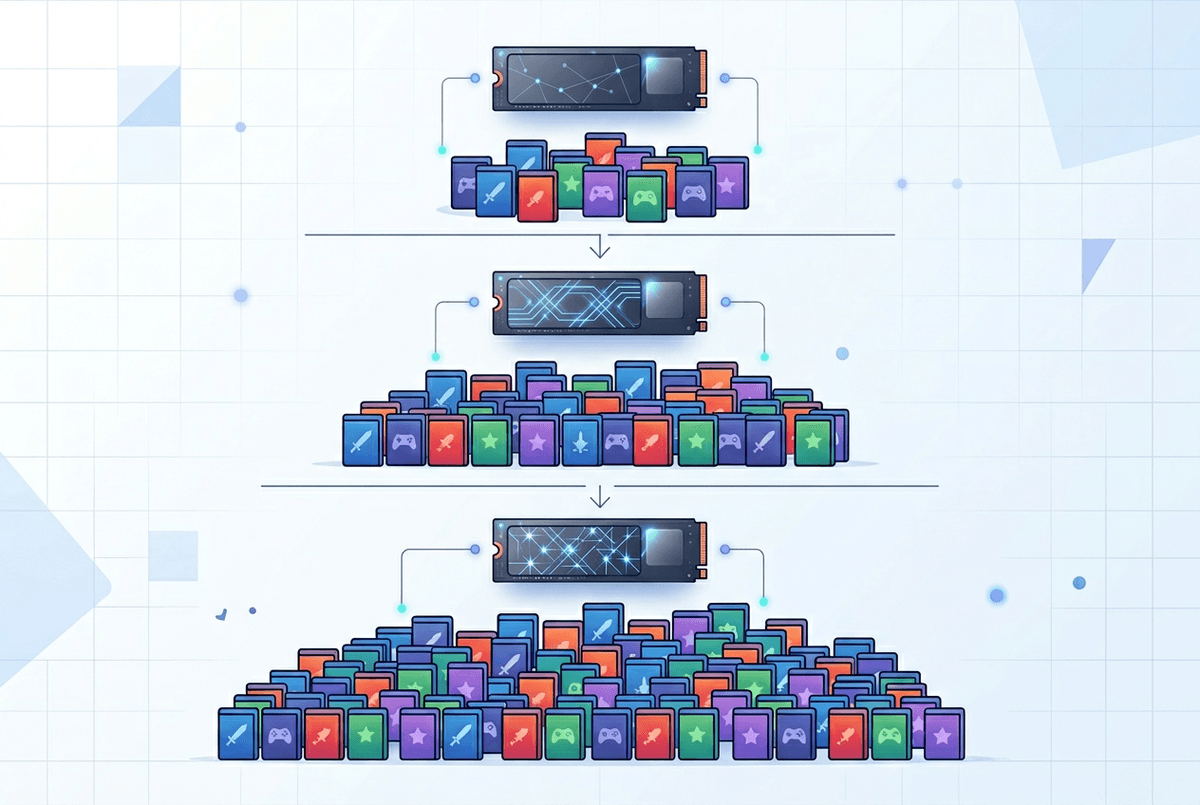
Most people get stuck at the shelf: a cheap “basic” SSD, a pricey “gaming” SSD, and a bunch of speed numbers that don’t really apply to a PS4. The console only takes a 2.5-inch SATA drive, and it won’t use NVMe or the super-high read/write ratings you see advertised. What matters more is buying a normal, reputable SATA SSD and not paying extra for performance the PS4 can’t reach.
Stick to 2.5-inch SATA (not M.2), 7mm thickness, from a brand with a solid track record. Capacity is the real choice: 500GB works if you rotate games, 1TB is the sweet spot for most people, and 2TB is convenient but gets expensive fast. I’d also avoid the very cheapest no-name drives; saving $15 isn’t worth a flaky controller and random slowdowns later.
Once you’ve picked the drive, the part that actually saves headaches is backing up the right stuff before you pull the old one.
Before you swap, what’s worth backing up—and how
You usually don’t realize what’s “on the drive” until the PS4 boots to a blank home screen after the swap. If you have PS Plus, turn on automatic cloud uploads for saves, then manually push a fresh upload for the games you care about most (Settings > Application Saved Data Management). It takes a minute and it removes the biggest risk: losing progress because a local save didn’t make it up.
For everything else, decide how much time you want to spend later. You can back up saves, captures, and settings to a USB stick, but a full system backup to an external drive is only worth it if you want to restore the console almost exactly as-is. The catch is that the full backup can take hours, and it needs a drive with enough free space to hold it. If you skip it, plan on re-downloading games and redoing a few preferences.
Either way, have a USB drive ready, because you’ll need one again for the system software install step.
Opening the PS4: small model differences that matter
You set the console on a table, grab a small Phillips screwdriver, and then realize the “easy” part looks different depending on which PS4 you own. On the original PS4 and the Slim, you slide off a little plastic panel on the side/back to reach the drive caddy. On the Pro, it’s still a panel, but it’s in a different spot and usually feels tighter—more “pop it loose” than “slide it off.”
After that, the steps rhyme: one screw holds the caddy, four screws hold the drive in the caddy, and the SATA plug pulls straight out. Take a quick photo before you remove anything, because it’s easy to flip the caddy or mount the SSD backward when you’re rushing. Also, don’t strip the screws; Sony’s soft metal plus an over-tightened factory screw can turn this into a 30-minute fight with a stuck head.
Once the SSD is seated and the caddy is back in, the real make-or-break step starts: getting the system software reinstalled cleanly.
Reinstalling system software is the step that trips people up
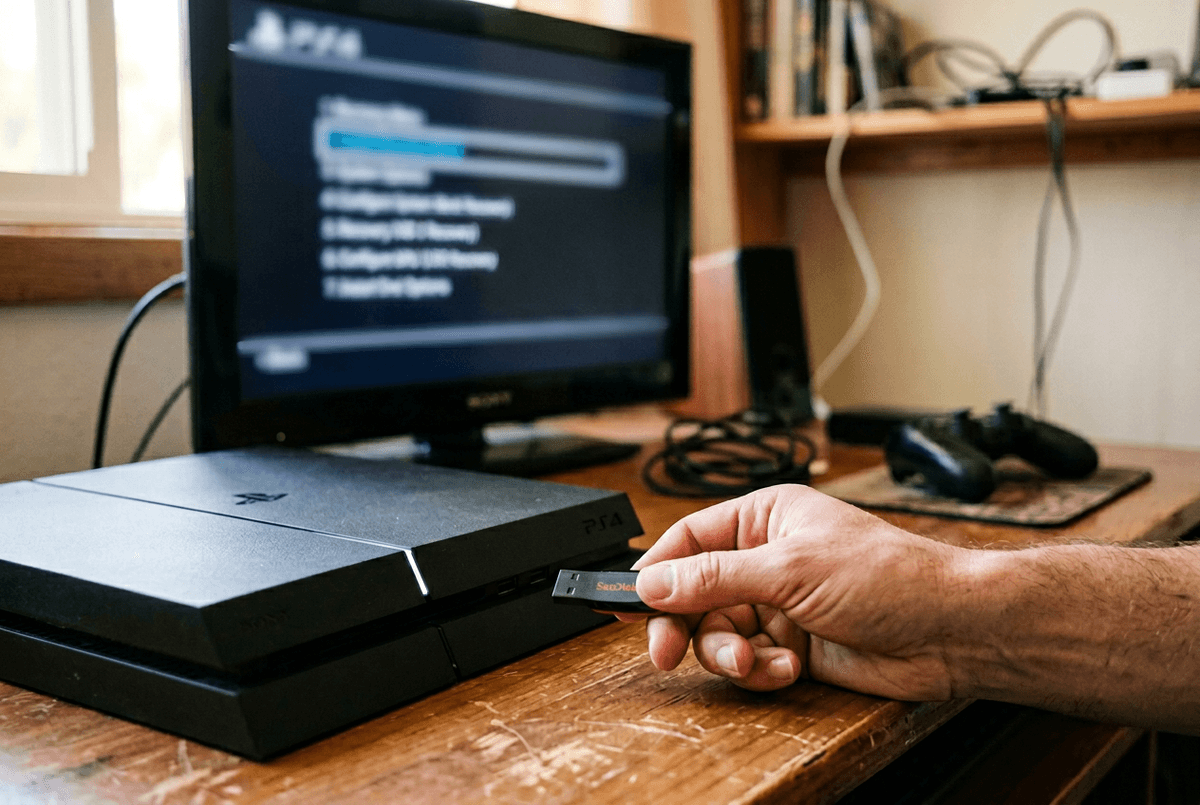
You put the SSD in, hit the power button, and the PS4 lands on a screen that makes it feel like something went wrong. Usually, nothing’s wrong—you just need the full system software reinstall, and this is where people grab the wrong file or format the USB the wrong way.
On a computer, format a USB stick as FAT32 (or exFAT), then build this exact folder path: PS4 > UPDATE. Download the PS4 system software reinstallation file (not the smaller “update” file), rename it to PS4UPDATE.PUP, and place it inside UPDATE. If the PS4 says it can’t find the file, it’s almost always the folder names, the wrong PUP, or the USB format.
Boot the console into Safe Mode (hold power until the second beep), pick the option to initialize and reinstall from USB, and let it finish without touching anything. If it loops back to the same screen, try a different USB drive—some just don’t cooperate.
Living with the SSD: what improved, what didn’t, my verdict
After the reinstall and a night of re-downloading, the difference showed up in the boring moments: the PS4 got to the home screen faster, games reached their main menus quicker, and fast-travel felt less like a coin flip. Even menus inside big open-world games popped in with fewer hitchy pauses, especially after a long rest mode cycle.
But it didn’t turn the PS4 into a PS5. “Copying…” screens, big patches, and some long level loads barely moved, and a few games still hit the same built-in wait points. You also pay a real cost in time up front: backups, the USB reinstall, then hours of downloads.
My verdict: if loading and boot times annoy you weekly, a decent 1TB SATA SSD is worth it; if you mostly play one game and leave it running, you’ll notice less.