Two machines, one desk, constant context switching
You open a doc on your work laptop, then reach for your mouse and realize it’s “on the other computer.” You drag the wrong cursor, type a password into the wrong window, or copy text and paste… nothing. After a few hours, the desk routine turns into a steady drip of interruptions: hands switching keyboards, eyes hunting for focus, cables and dongles creeping outward.
Most people try to patch it with a second mouse, a clunky KVM button, or a Bluetooth re-pair dance. It works until it doesn’t—sleep wakes up weird, the USB hub flakes out, or the “right” keyboard is connected to the “wrong” machine. The goal is simple: one set of input that moves between computers on purpose, not by accident.
To get there, you’ll need to see when you actually switch and what you expect to carry across—cursor, typing, copy/paste, and even audio—because the best fix depends on those moments.
Start by mapping your real switching moments
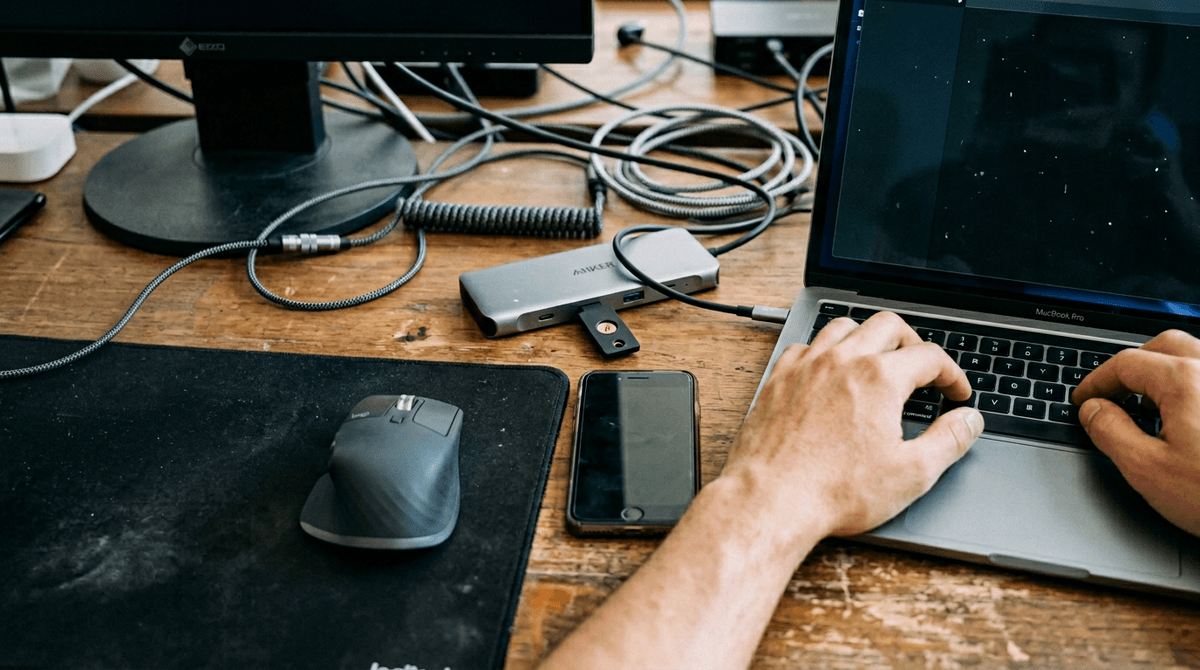
On a normal day, switching isn’t random. It clusters around a few repeatable moments: answering a Slack ping on the work laptop while you’re mid-edit on your desktop, grabbing a file link from email, or pasting a snippet from a browser tab you keep “over there.” Write down the last five times you switched and what triggered it. Be boringly specific: “copied a URL,” “typed a 2FA code,” “dragged an image into a chat.”
Then mark what you expected to cross the gap. Cursor and typing are table stakes, but copy/paste, scrolling, and hotkeys matter more than people admit. If you rely on shared clipboard ten times a day, losing it will feel like failure. Also note constraints you can’t ignore, like a locked-down work laptop, or a monitor setup that changes when you dock. That map makes the software-vs-KVM choice much easier.
Software sharing or hardware KVM: which pain wins?
You’re usually choosing between two annoyances: a physical switch that always works the same way, or a “seamless” handoff that depends on software behaving. Software sharing (Synergy, Barrier, Logitech Flow, and similar tools) feels great when you slide your cursor across screens and the keyboard follows. If you copy/paste constantly, software is often the win because clipboard sharing can be built-in instead of another workflow.
A hardware KVM earns its keep when the work machine is locked down, your network is unreliable, or you don’t want your input path tied to an app running in the background. Hit a button, both keyboard and mouse jump. The downside is real: many KVMs are picky about high polling-rate mice, hotkeys can collide with app shortcuts, and switching can momentarily drop USB devices like webcams or audio interfaces.
If your “switch moments” need shared clipboard and you can tolerate the network being part of the chain, software is usually less friction. If you need predictable behavior under pressure—calls, recordings, or secure logins—a KVM is often calmer, even if it’s less elegant.
If you go software, can your network be trusted?
You slide the cursor to the edge of one screen and nothing happens. Or it works, but the keyboard lags just enough to miss a character in a password field. Before you commit, test the boring stuff. Put both computers on the same network path (same Wi‑Fi or both on Ethernet), then lock and wake them a few times and see if the link comes back without babysitting.
If the network can’t behave, you’ll spend more time reconnecting than switching—so it’s worth knowing that before you start tuning layouts and hotkeys.
My software setup: install, pair, then align screens
You sit down, open both machines, and the first test is simple: can you move the cursor across without thinking about it. For my setup, I keep it boring: one “server” machine that owns the keyboard and mouse, and one “client” machine that receives them. Install the same tool on both, put them on the same network, then do the initial pairing while everything is awake and unlocked. If the app asks for accessibility, input monitoring, or firewall permission, do it right then—waiting until later is how you end up troubleshooting during a call.
After pairing, I fix the screen map immediately. Drag the monitor boxes until the on-screen edges match your real desk, then test every crossing: left-to-right, right-to-left, and corner-to-corner. Corners are where the “why won’t it go over?” frustration lives. One practical annoyance: docking changes display order on many laptops, so save a layout or keep a quick checklist for days you plug into a different monitor.
Once the cursor feels natural, turn on clipboard sharing and set one deliberate “panic” hotkey to jump back to the main machine when something goes weird.
When a KVM is the calmer choice
You’re ten minutes into a client call, you need to type a password on the work laptop, and the cursor handoff decides to stall. In that moment, “seamless” stops mattering. A KVM is calmer when you need a switch that behaves the same way every time, even if one machine is asleep, or locked down by IT policy.
A KVM also shines when you’re pushing finicky gear through USB: a webcam that drops for a second, an audio interface that pops, a Stream Deck, or a high polling-rate mouse that some cheap switches can’t handle. If your day includes recording, live demos, or frequent secure prompts, you don’t want your input path tied to an app, permissions, or a firewall rule that changed overnight.
The cost is real: good KVMs aren’t cheap, video specs get confusing fast, and some setups still need extra cables or a powered USB hub. But if you value predictable switching over shared clipboard, it’s often the easier kind of boring.
The failures that ruin trust—and quick fixes
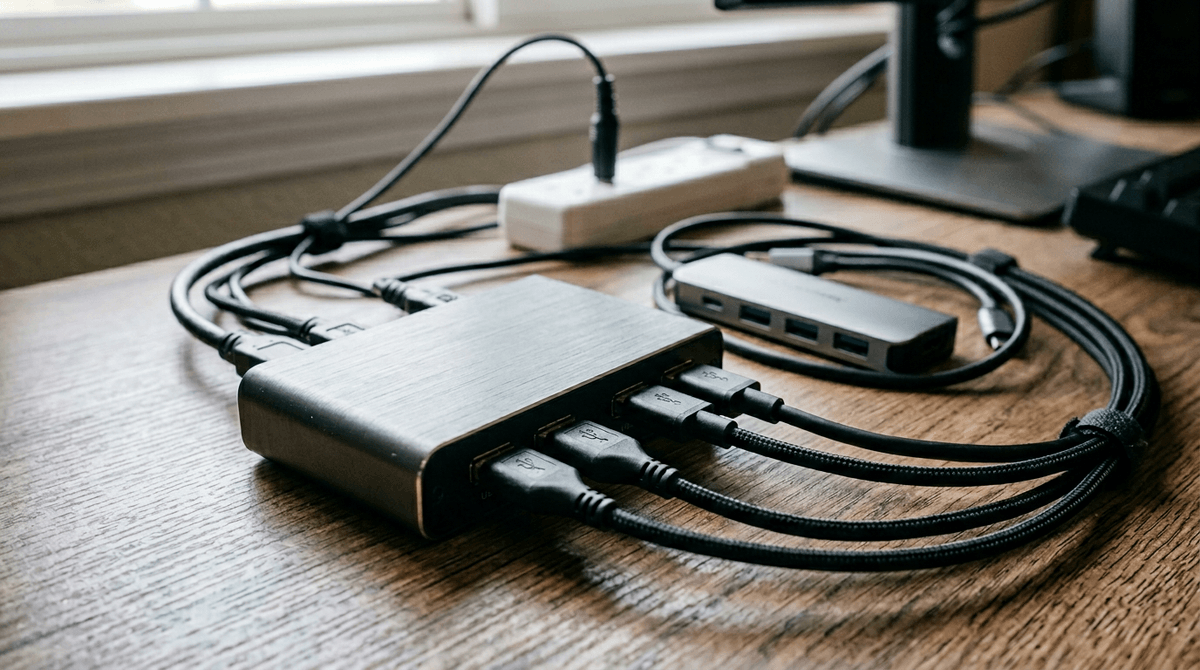
You notice the same “trust breakers” after a week: the cursor won’t cross until you quit and relaunch, the clipboard silently stops, or one machine wakes up and the connection never returns. If it fails twice in a row, you start reaching for the spare mouse again.
Quick fixes depend on the failure. If software sharing drops out, confirm both machines are on the same network, then re-check the three usual culprits: firewall permission reset after an update, or the app lost accessibility/input permission. If wake-from-sleep breaks it, disable deep sleep on the “server” machine, or set the sharing app to start at login and auto-reconnect. If corners trap your cursor, nudge the screen map so edges actually line up, and add a hotkey that jumps focus back without dragging.
If a KVM flakes, power it from the wall, try different USB ports, and avoid “smart” USB hubs in the middle. Some setups only stabilize when you simplify the chain.
Make it stick as a daily, low-friction habit
On day one, everything feels smooth. On day seven, a dock change, an update, or a random reboot brings back the “where did my mouse go?” moment. The habit that sticks is the one that assumes something will break and makes recovery fast, not heroic.
Pick one default path and one fallback. If you’re on software sharing, keep a “reconnect” hotkey, set it to launch at login, and pin a tiny checklist: same Wi‑Fi? permissions still granted? If you’re on a KVM, label cables, power it from the wall, and keep the switch button reachable without moving your mic or camera. Then remove the spare mouse from the desk so you actually notice drift and fix it.